1. Home
  2. Docs
  3. Automation Using Workflow...
  4. Types of Flow Elements
  5. Linear Flow Elements (Workflow Page)

Linear Flow Elements (Workflow Page)

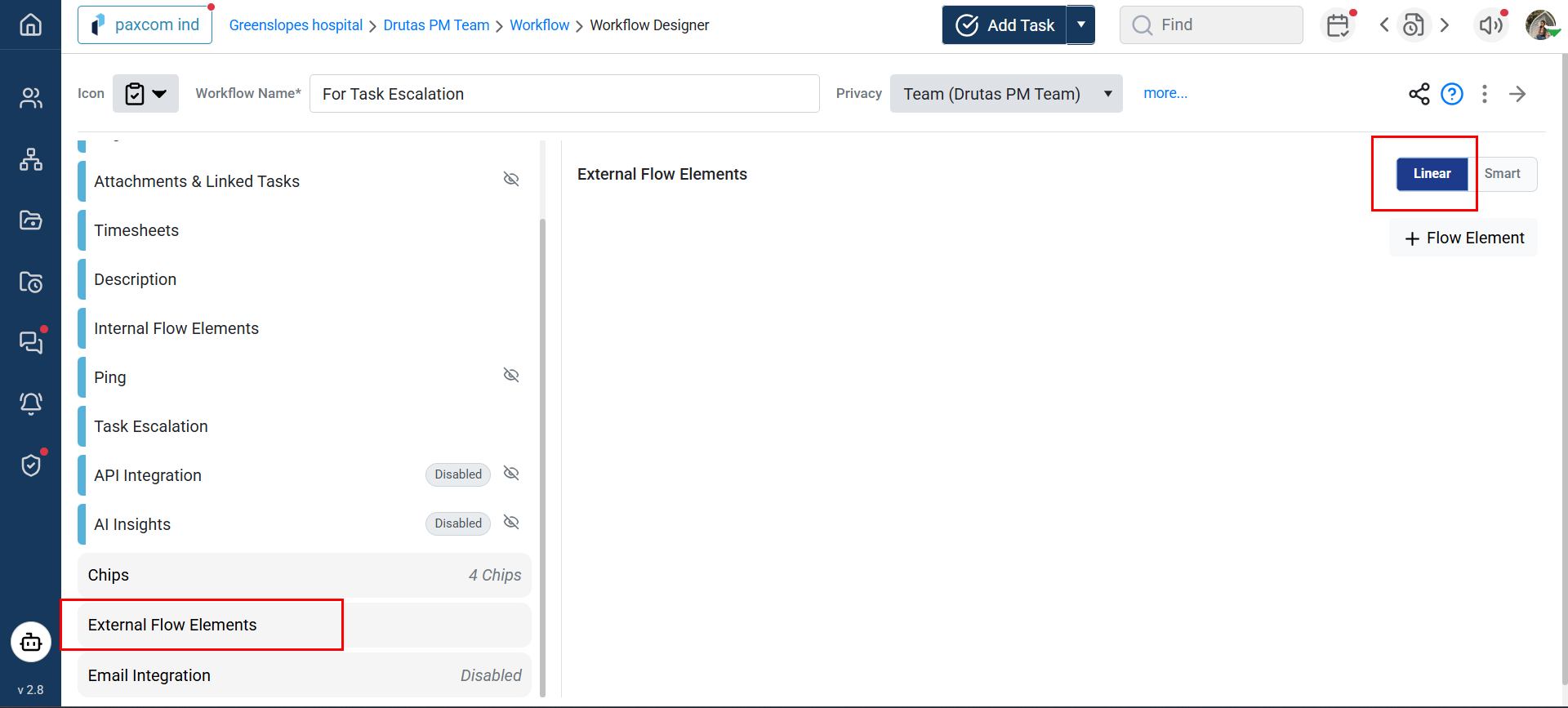
To automate a Task/Forms, select “External Flow Element” from the workflow feature list on the left sidebar:

To add Linear Flow Elements follow the below steps:

  • Open Team’s common page 
  • Switch to the Workflow page
  1. Click a Workflow to open its settings, then select the External Flow Elements from the left sidebar feature list and select Linear button, shown below:

How to Make Flow Elements Selection:

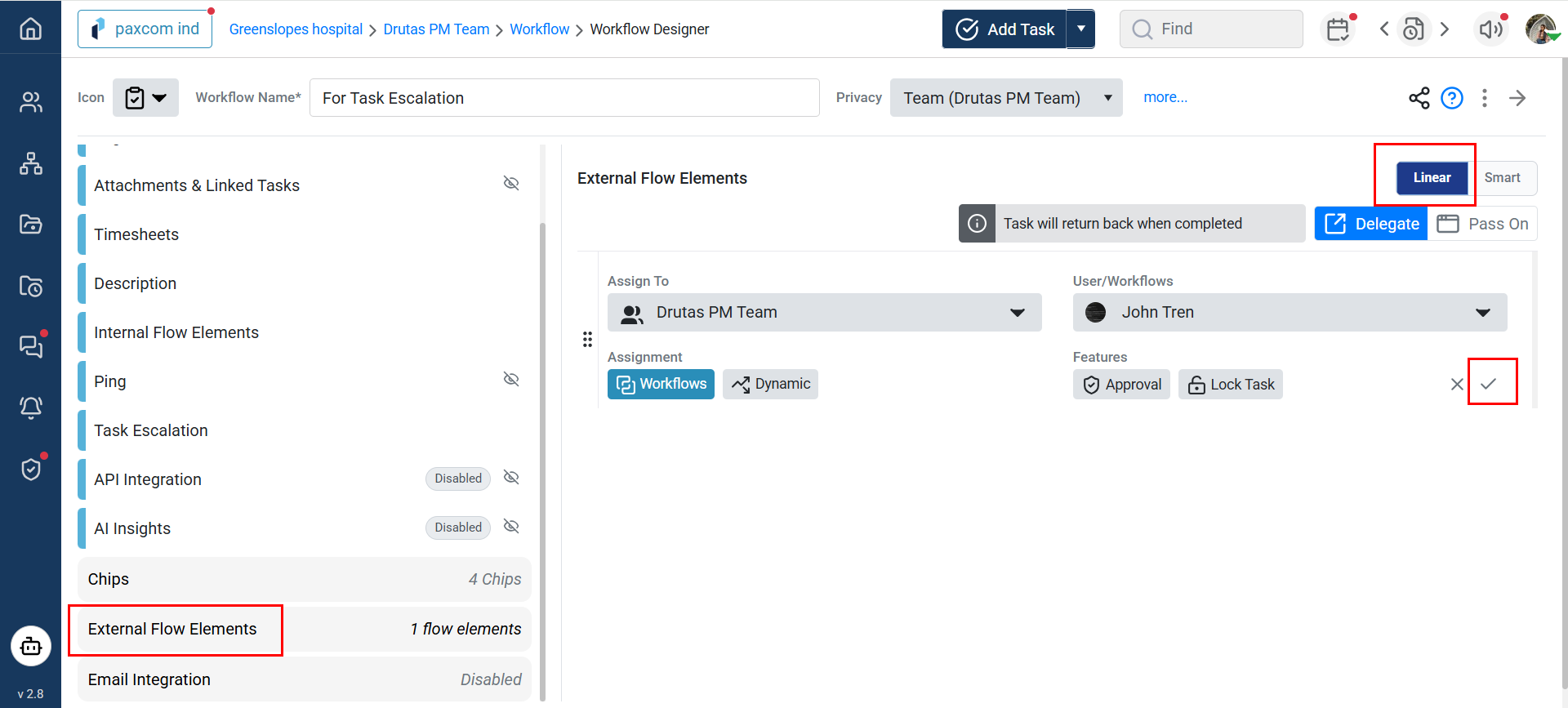
  • Click “+ Flow Element” to open task assignment details and choose the next team/user, setting the task’s path, as shown below:
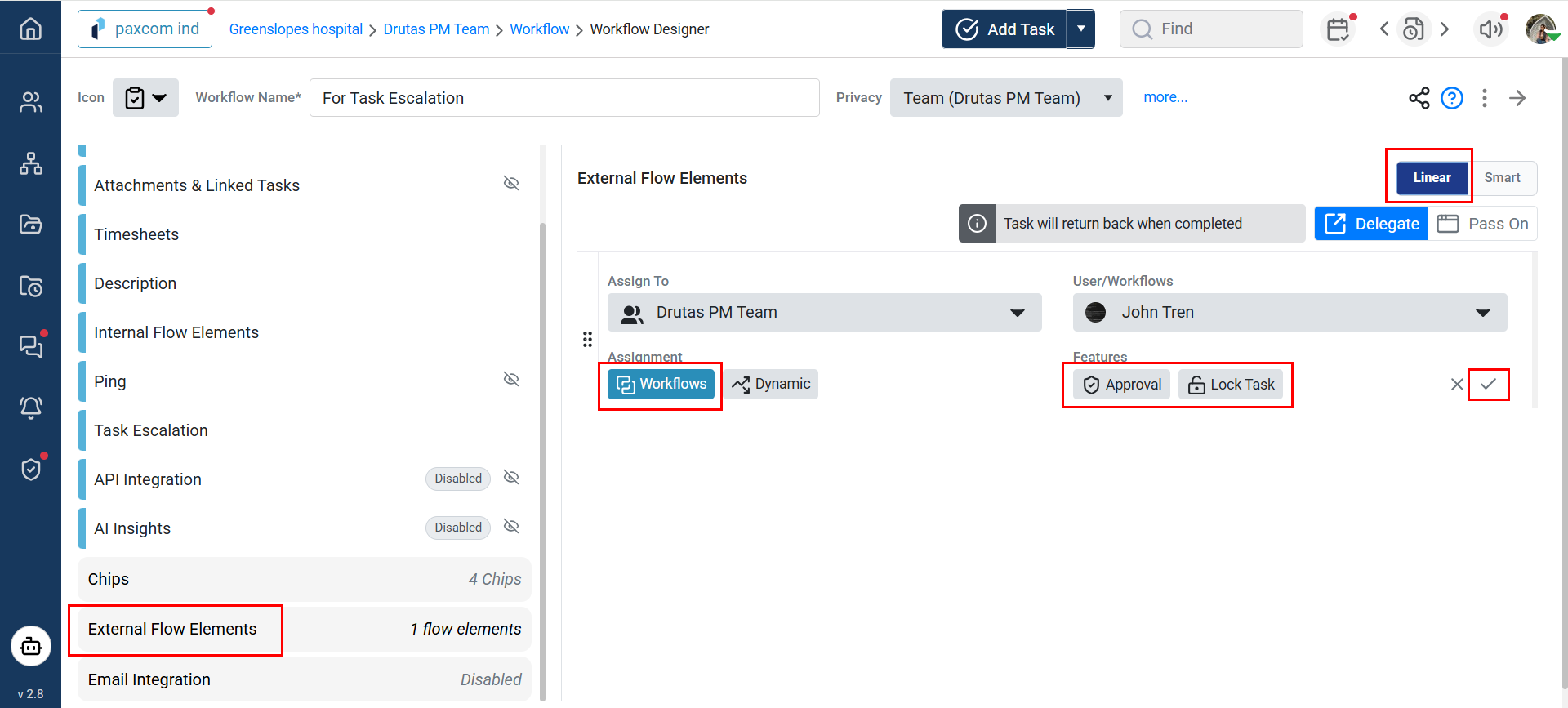
  • You can set a task for approval and/or lock the task created using the Workflow for the selected team/user. Locking secures the task’s name, description, and attachments, and can be unlocked anytime from the task sidebar, approval and lock icons shown below:

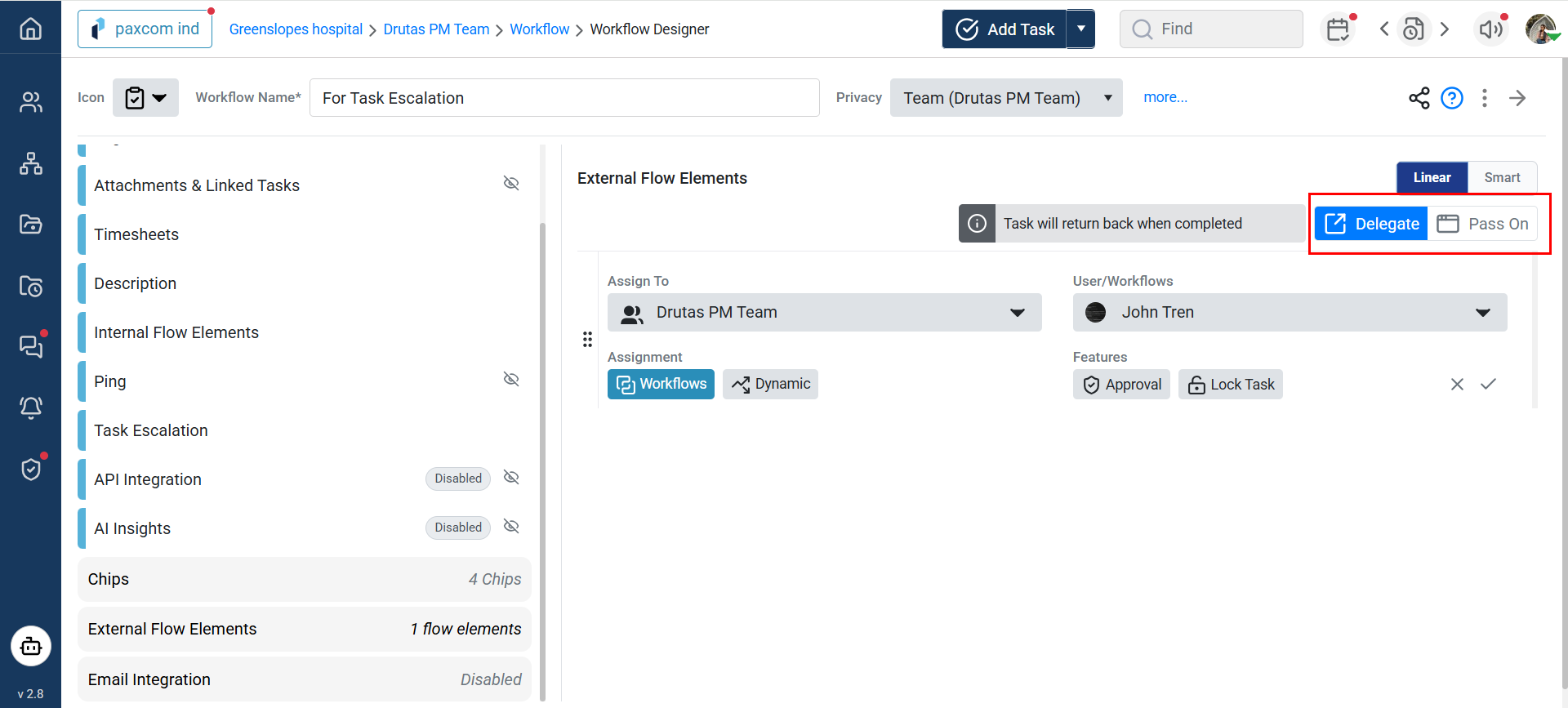
  • Return Mode Selection:

The return mode selection lets you delegate or pass on the initial flow element for smooth task progression, shown below:

  • Dropdown One

The team from which you want to create a task appears in the first dropdown if you’re a member. If not, use the dropdown to find and create tasks in that team, even if it’s not listed initially.

  • Dropdown Two

In the second dropdown, your name appears by default if you’re in the selected team/project. You can choose a Workflow or user based on privacy settings. Non-members get a default Workflow but can select another.

Please note that the flow elements added in the Workflow settings page, take effect when you mark the initial task as “Complete and Forward” in the task sidebar, moving the task to the next assigned team based on the workflow design, as shown below:

How can we help?