
Easily track your recently created tasks using multiple options, including the convenient ‘Recent Team/Tasks’ icon. With just a click, you can quickly access and effortlessly manage your recently created tasks.
- Start by viewing tasks with a single click on the ‘Recent Team/Tasks’ icon, shown below:
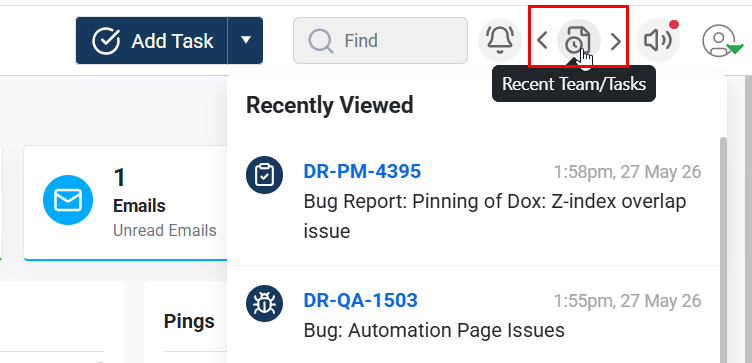 You can also view all recently accessed tasks by selecting the ‘View All Notifications’ button at the bottom of the same pop-up, shown below.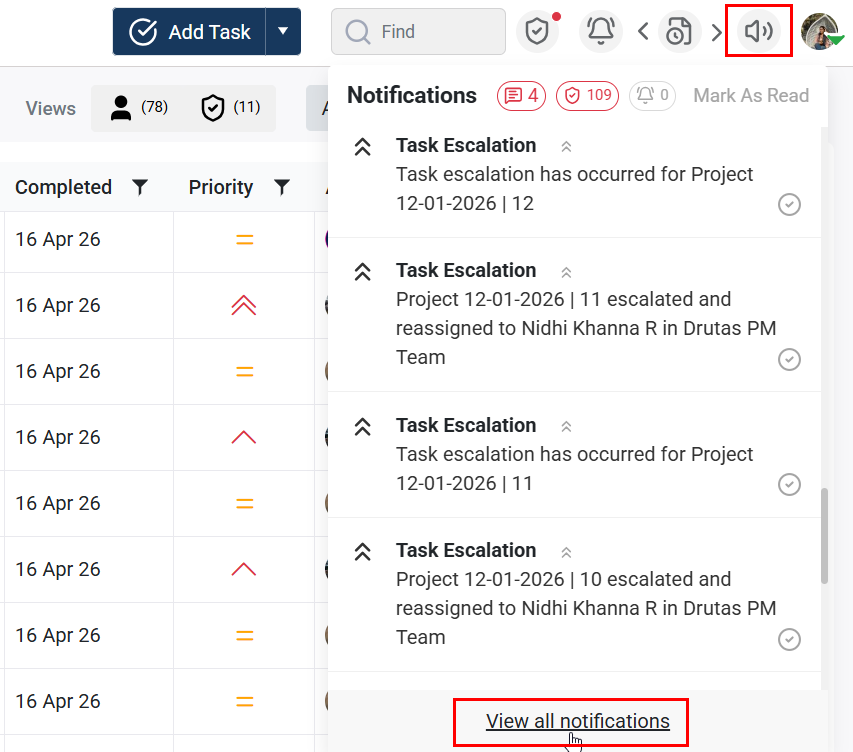
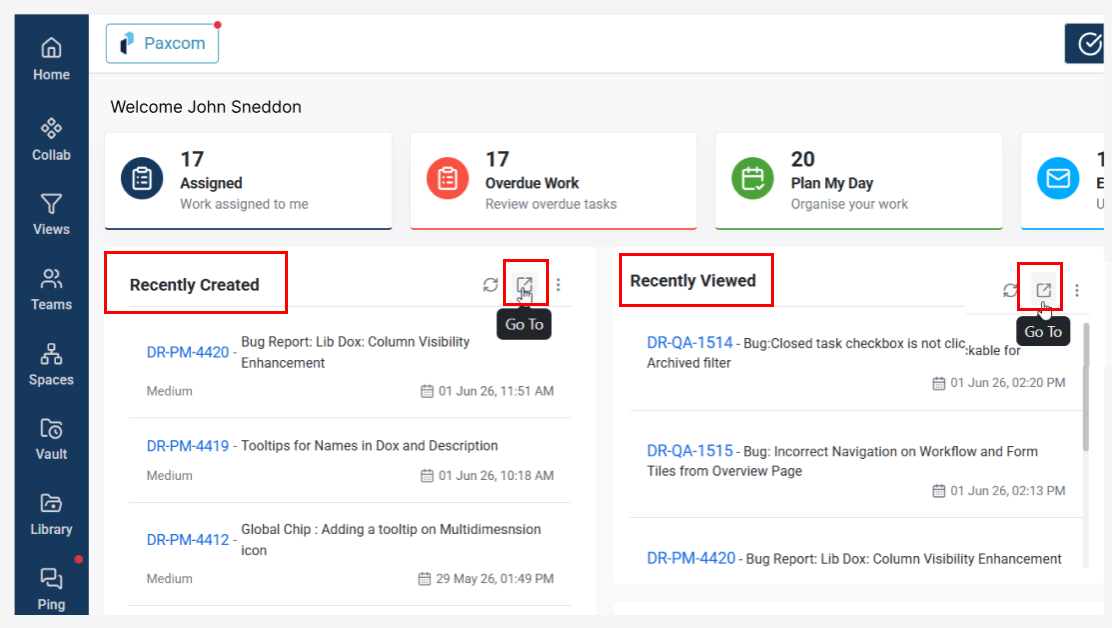
- Recently created tasks can also be accessed from the Home page of the application. Clicking this option will take users to the Ownership All filter, which displays all tasks created by the user.
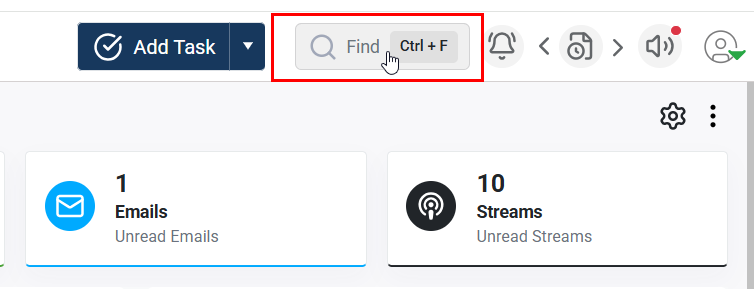
- Search Bar: If the task ID is known, recently created tasks can also be quickly located using the search bar on the Home page.
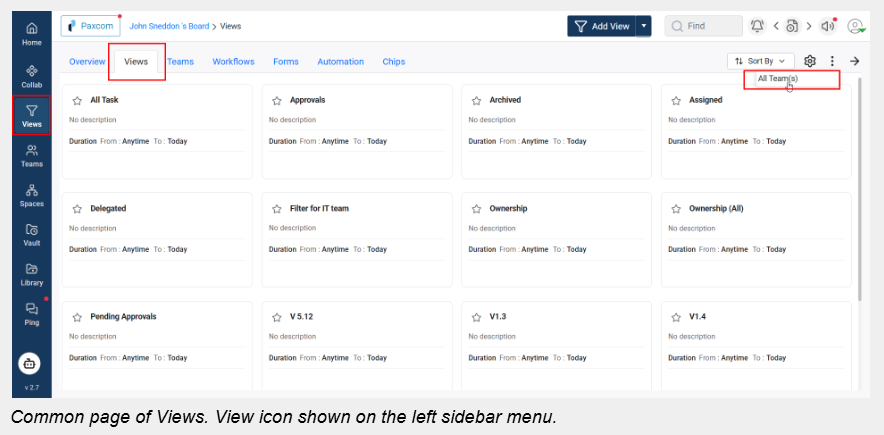
To view specific tasks, users can utilize Views, where filters can be saved for quick task access. The Views tab provides a centralized location to access both personal and team-based views. By default, the Personal Board displays only personal views. Using the three-dot menu and selecting All Teams allows users to view both personal and team-specific filters in a single consolidated list.
If you’re a Workspace owner, you can also view all team tasks within the Workspace.