
To ensure project momentum, tasks are automatically monitored against established deadlines. If a deadline is breached or the assigned user remains in ‘Away’ status for more than six consecutive business hours, the system seamlessly escalates the task to the next person in line. By catching delays early, we help teams stay on track and keep projects moving without a hitch.
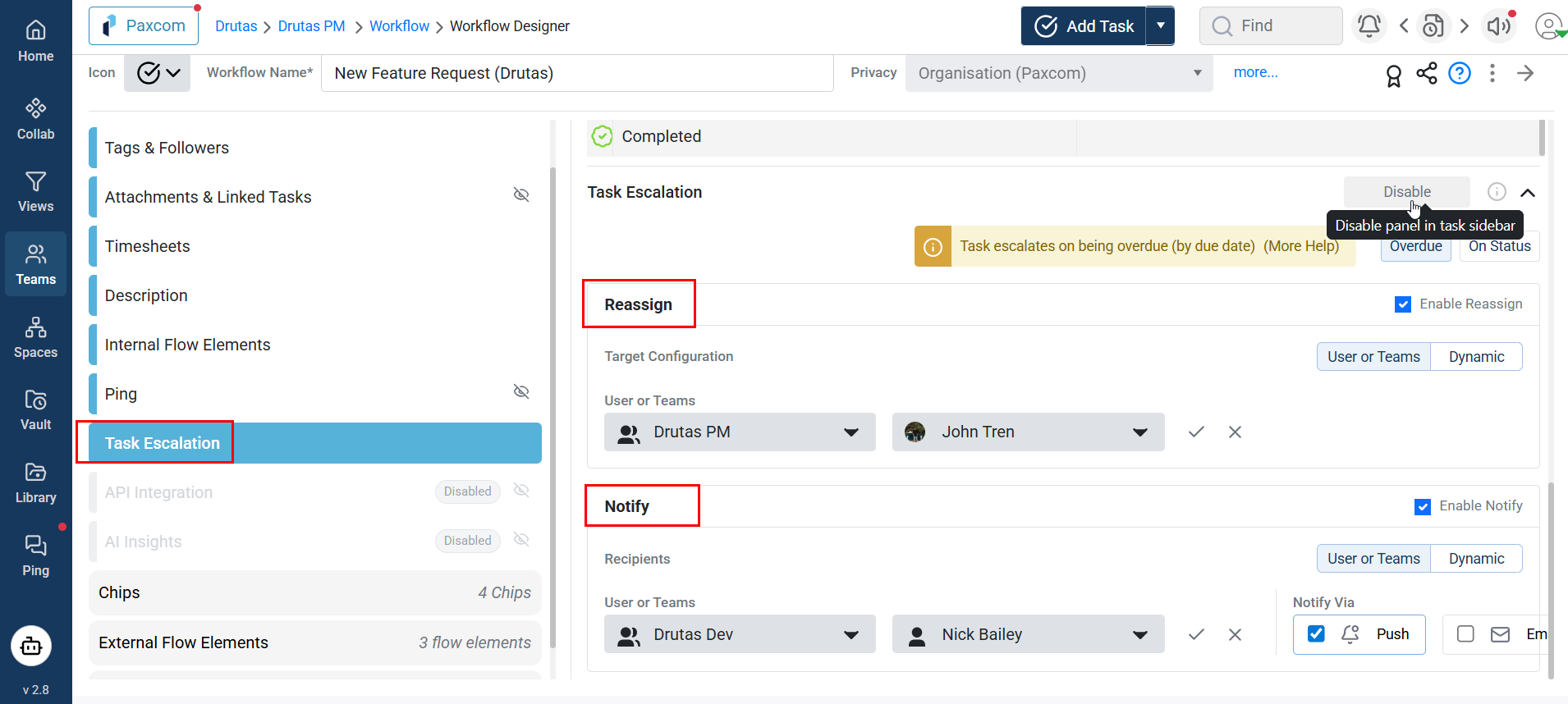
To enable this feature, navigate to the Team’s Workflow page and select Task Escalation from the menu. This feature is disabled by default; simply toggle the button on the far right to activate it.
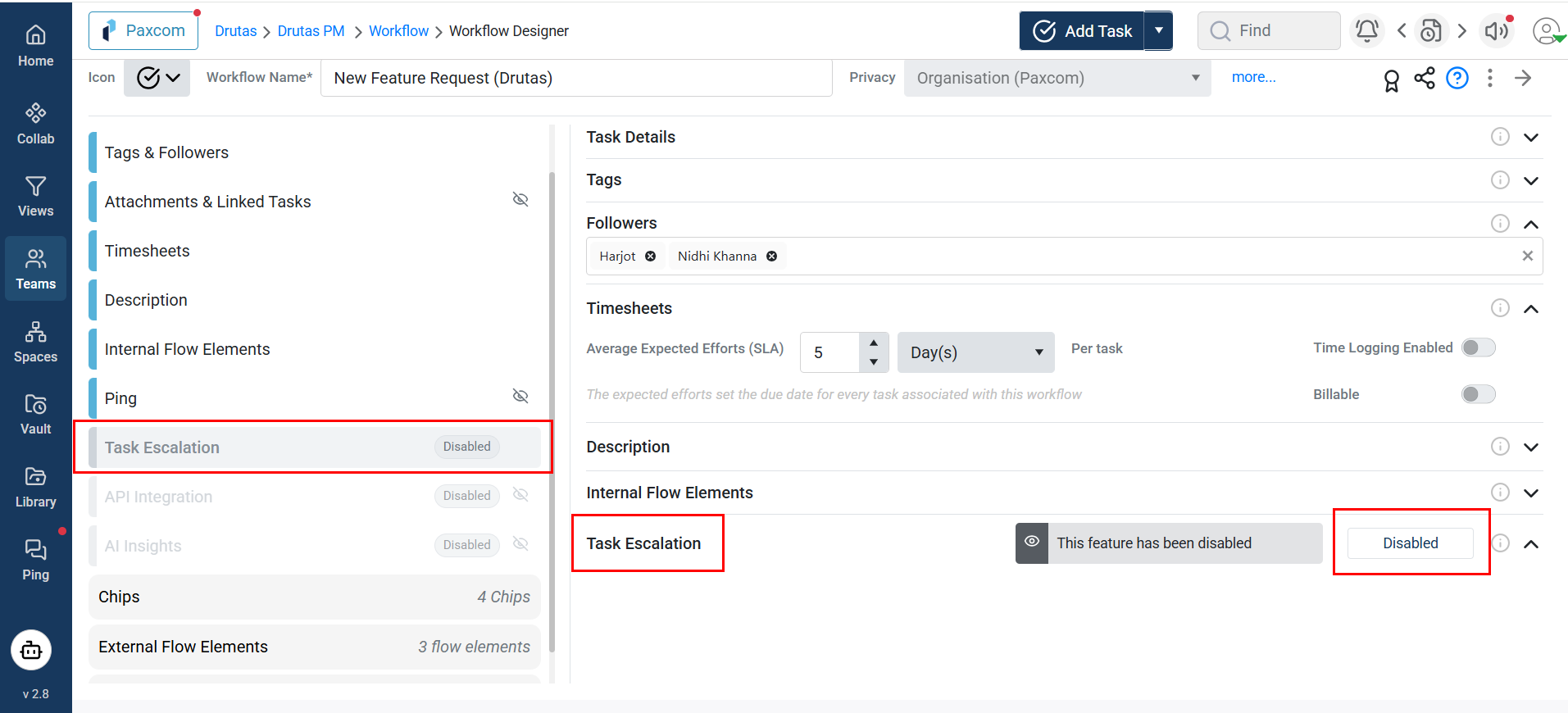
Tasks can be escalated in two scenarios: Overdue or On User Status(away).
- Users/Teams: Reassign the task to a specific user or team.
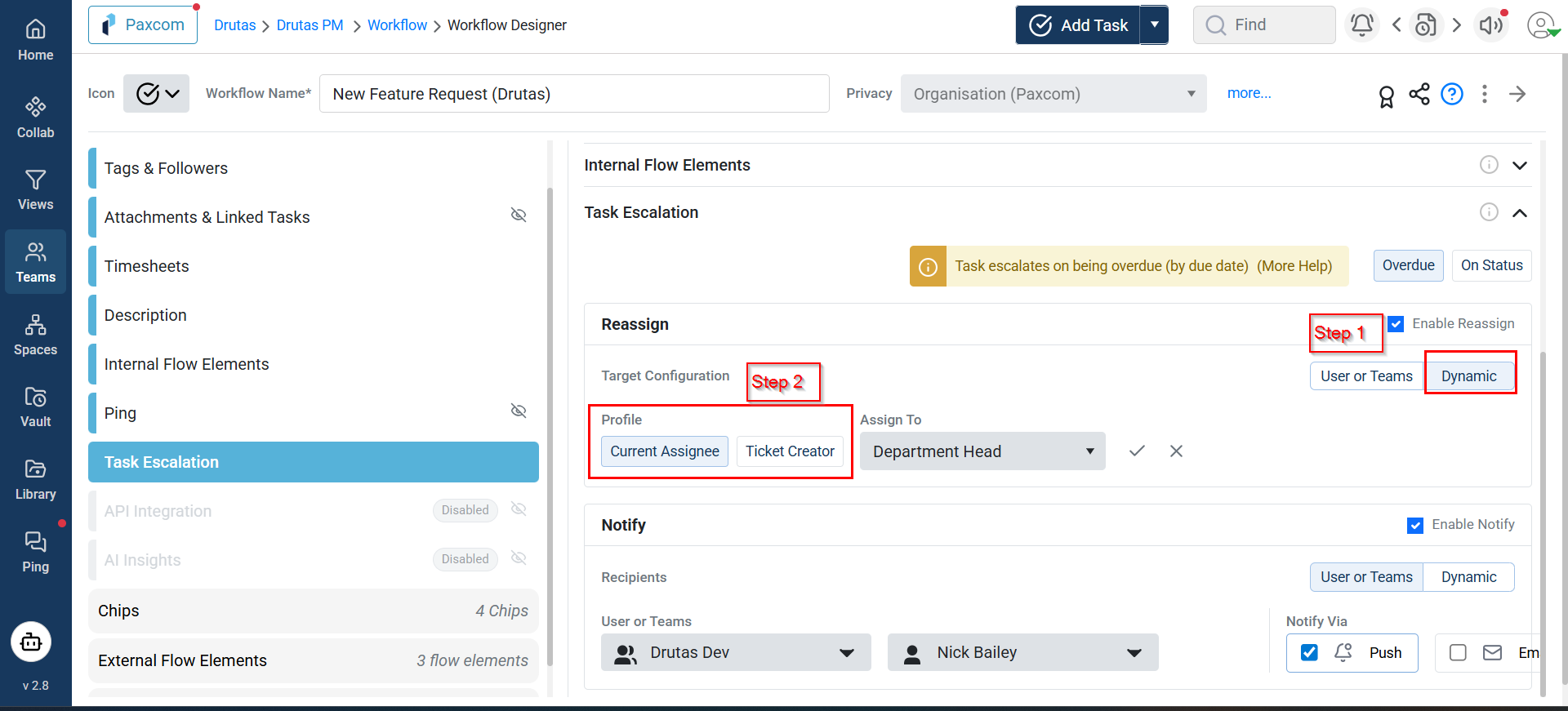
- Dynamic: Reassign tasks based on the Current Assignee or Task Creator, using fields/chips selected from dropdown on the right side, populated from the Admin Console.
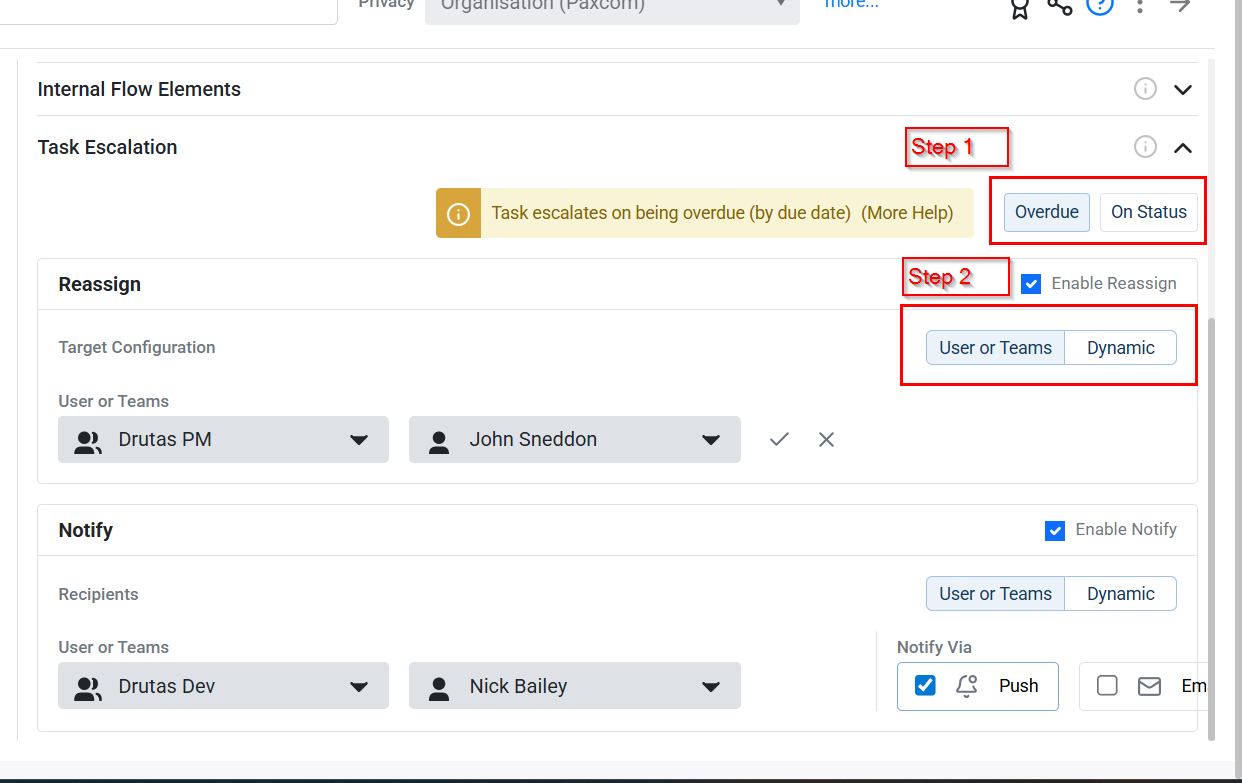
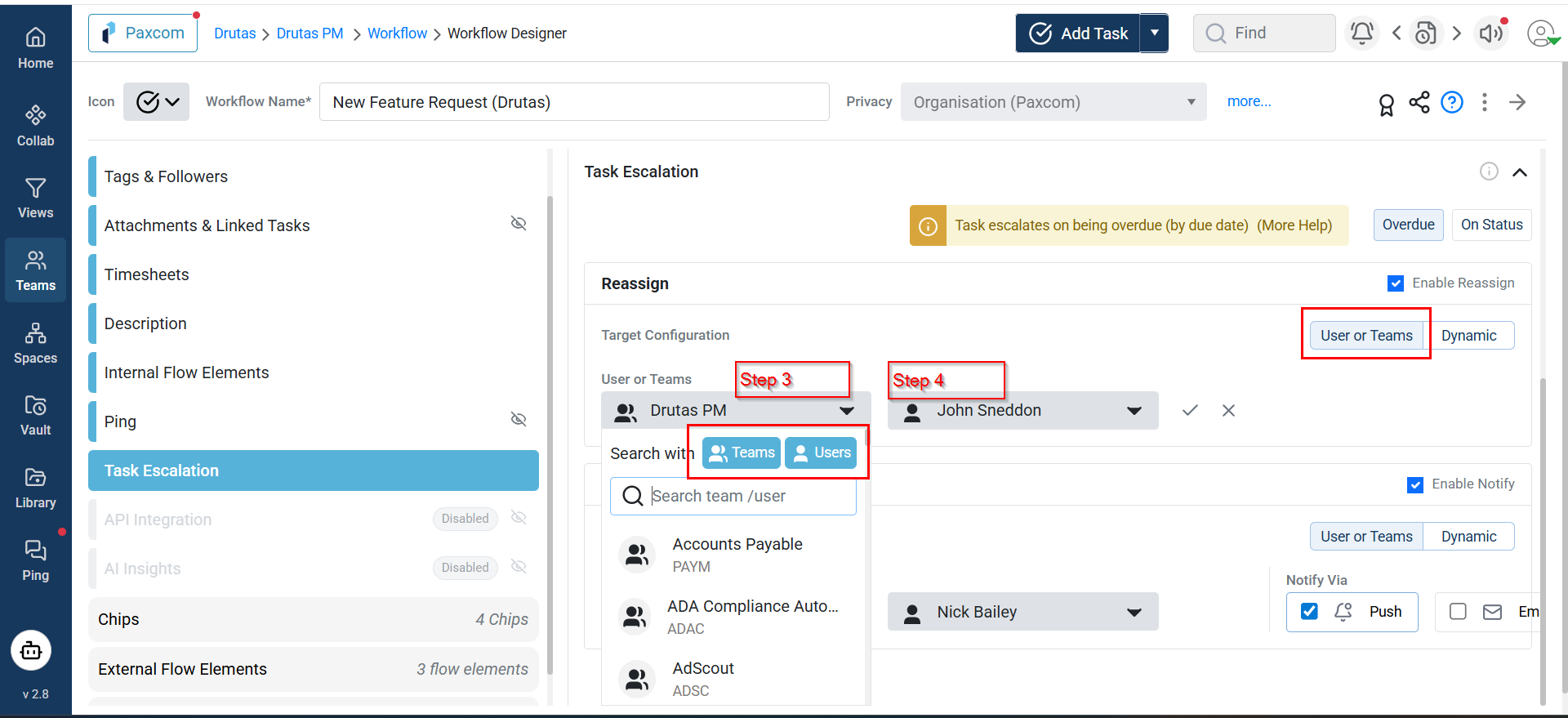
OR
When a task becomes overdue, it is automatically escalated based on the options selected in the Workflow settings page.
When task escalation is enabled, you can choose to escalate an overdue task to a specific team or user. You can also opt to send a notification when the task enters an overdue state.
At least one option—Future Assignee or Send Notifications—must be selected. By default, Assign To is enabled, but both options can be selected at the same time.
Task escalations run at 9:00 AM by default, based on the organization’s time zone.