
To add or update Linear Flow Elements from the Task Sidebar, follow these steps:
Once the Linear flow elements are added from the workflow settings page, you can modify or add more from the task sidebar using the Workflow Element Panel, shown below:
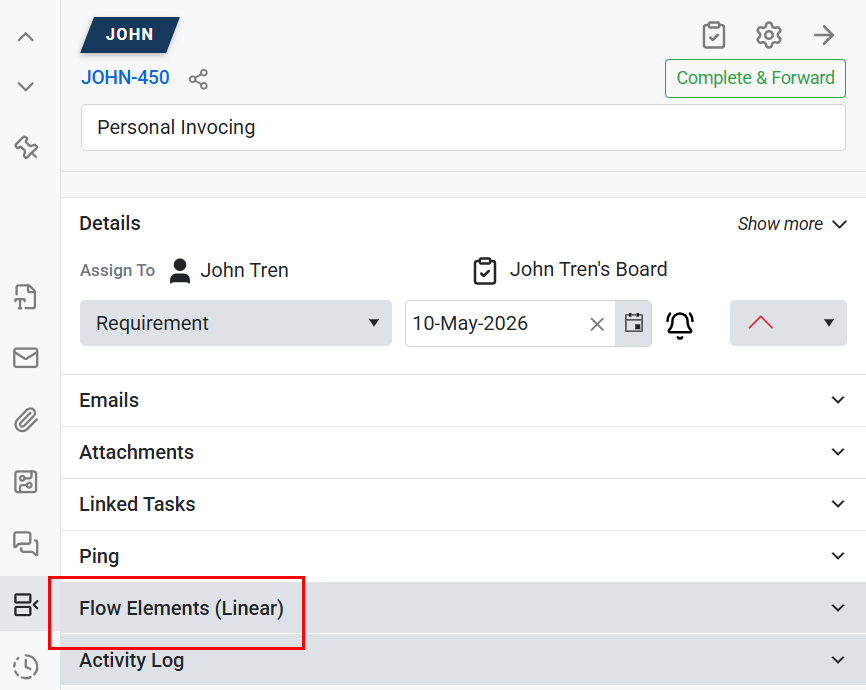
To add flow elements via Task Sidebar, follow these steps:
- Locate the task where you want to add flow elements.
- Click the Workflow Elements Panel
- Then Click +Flow Elements button, shown below
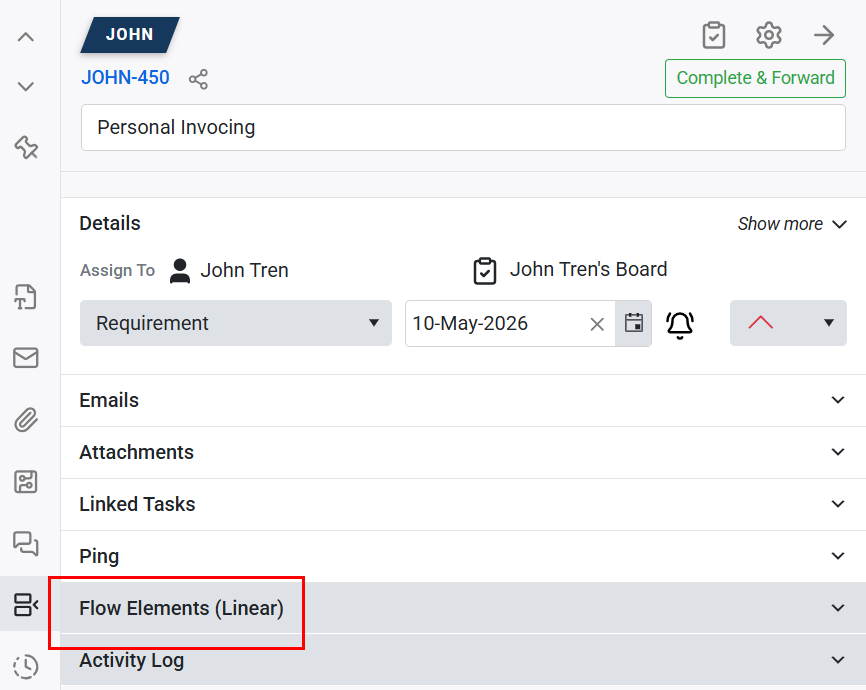
- You can add Flow Elements through the task assignment details dropdown. Just select the team/user and follow the next dropdown options.
Some important key notes on the Flow Elements:
- Flow elements added from the workflow settings, or the task sidebar will appear in the task sidebar’s Workflow Element Panel, shown below:

 You can edit or delete flow elements from the Workflow Elements Panel, the edit or delete icon will appear on the hover, highlighted below:

