Who can create a Space?
An Admin can create a Space and assign Space Owners to manage it. Space Owners can add and manage teams within the Space, move teams between Spaces, create teams, configure workflows, and manage workflow stages by adding, renaming, or deleting them. They can also update and maintain workflows as required.
To create a new space, please follow these steps:
- Click the space icon on the left side of the application to access the Space common page:
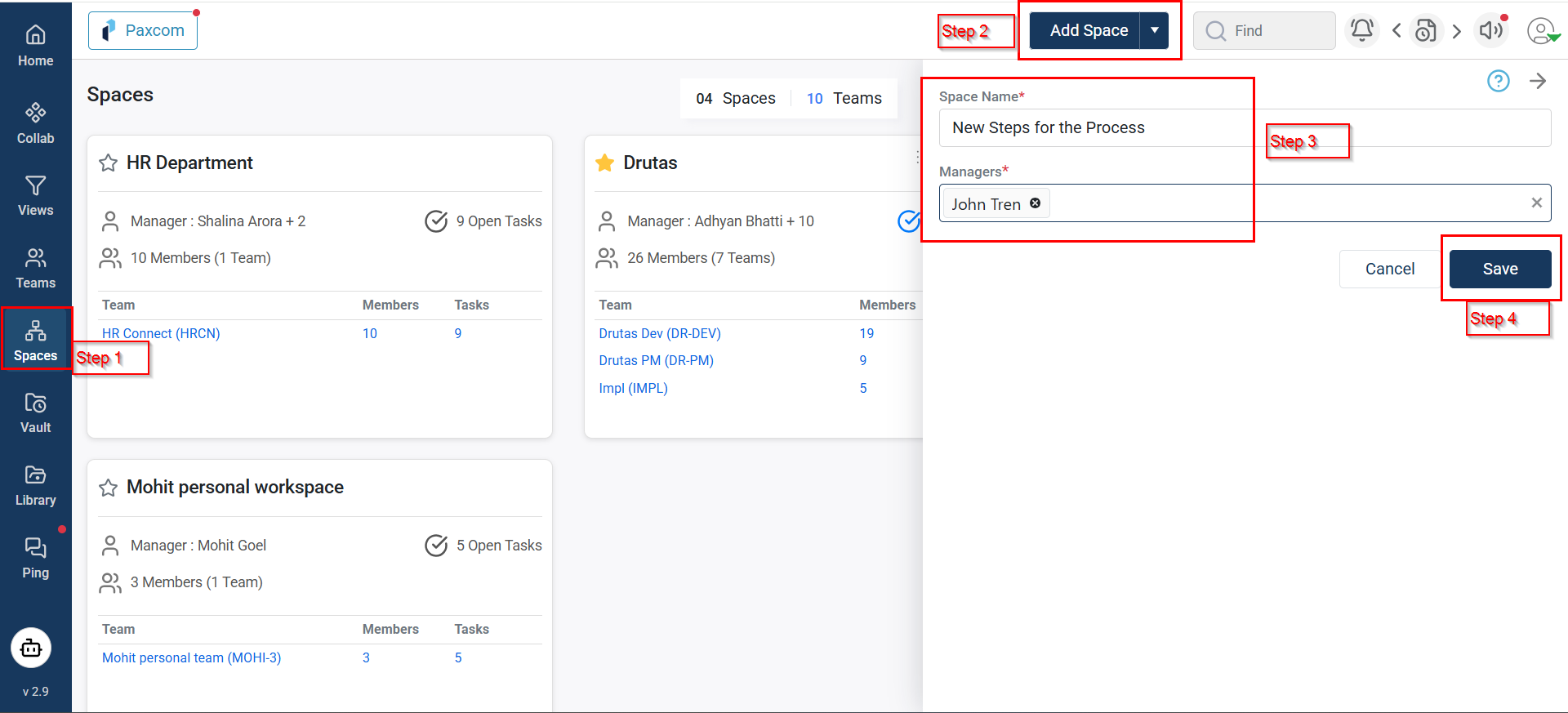
- Click the Add Space button to create a new Space. Enter a unique name for the Space in the dialog box that appears.
- You can also assign Space Managers by selecting users from the Managers dropdown, which displays all users within the organization.
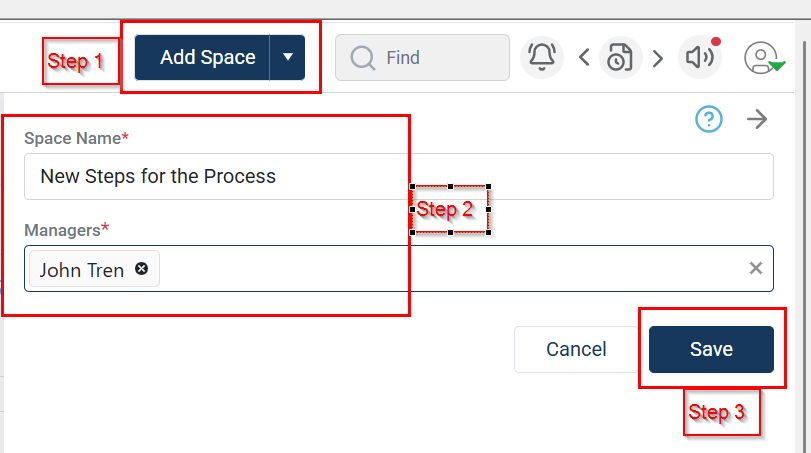
- Upon saving, the new Space will be created and a confirmation toast message will appear in the top-right corner of the screen.
- A default Team/Project will also be automatically created with the same name as the Space.
Locating a Workspace:
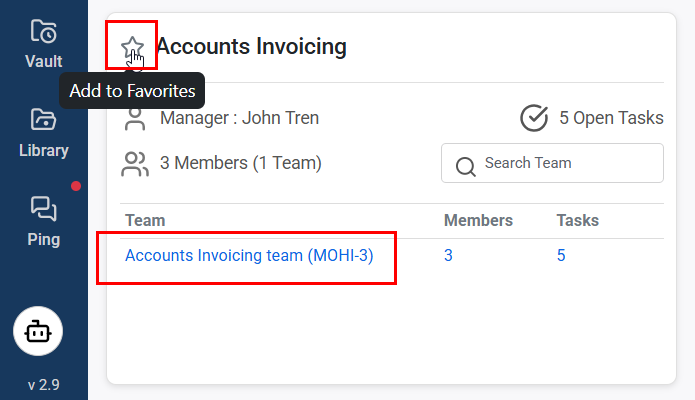
- You can find your created workspace or any workspace you are part of using the context-based search bar on the same page, which also allows you to locate tasks within teams under that workspace, search bar shown below:
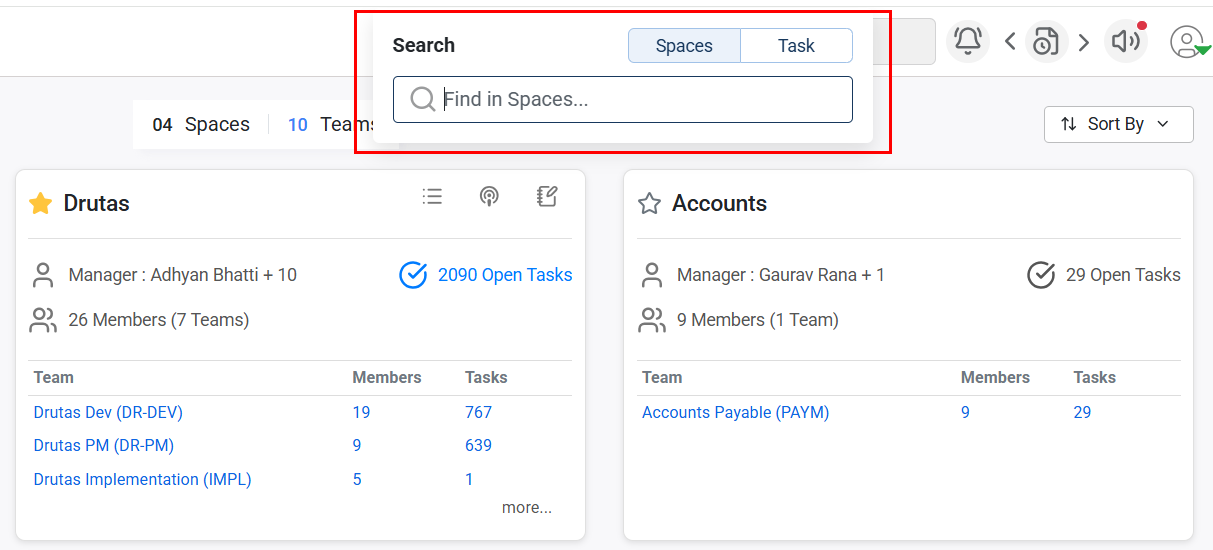
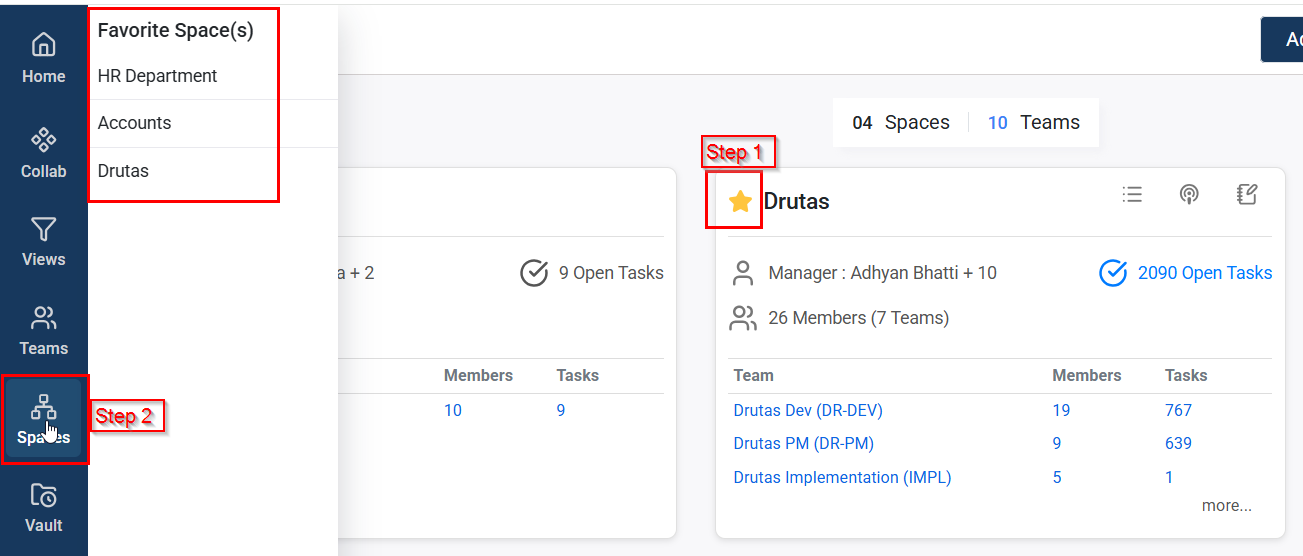
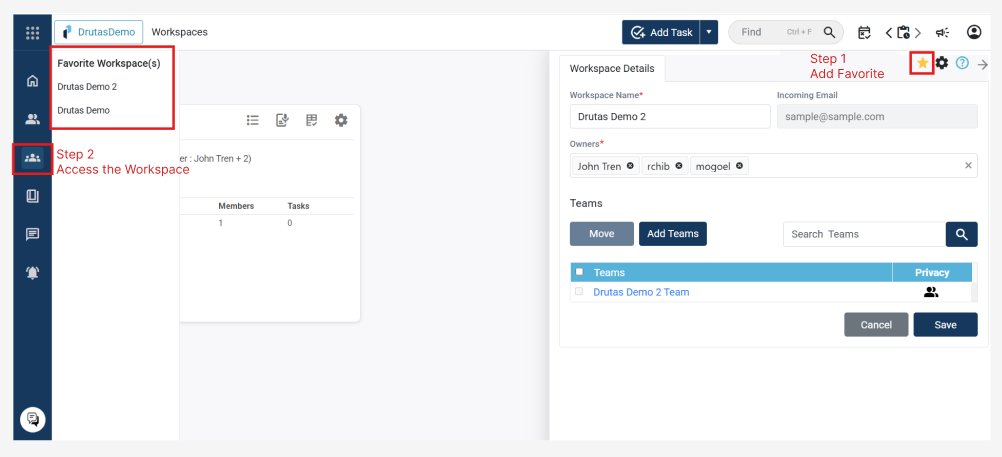
- After finding the space, you can mark it as a Favorite using the star icon for quick access.
- Just hover over the space icon on the left, and your favorite workspaces will appear.
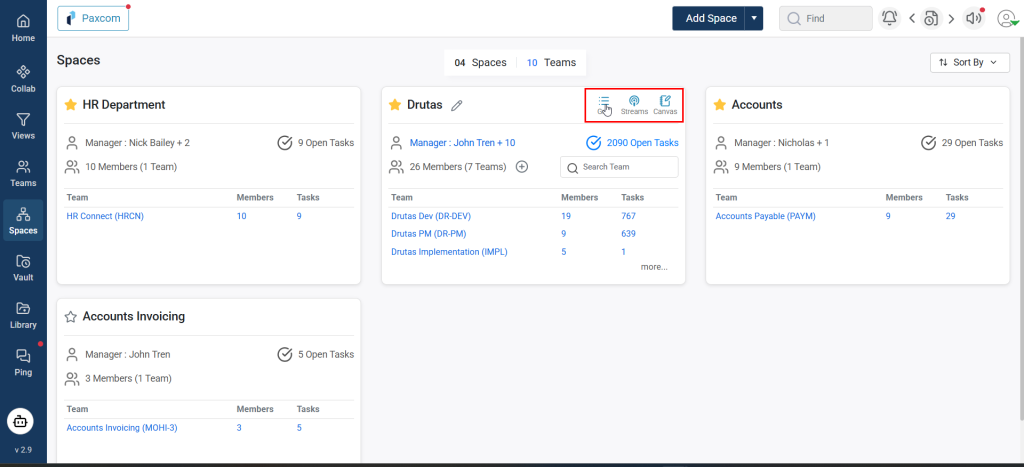
Workspace common page
Click the space icon on the left panel to open the space Common Page. This page shows a list of all the workspaces you’re part of along with Spaces you’re not a part of. The spaces that you’re not part of will be for view only. But if you’re part of a spaces, you can hover over the space card and three icons will be shown.