
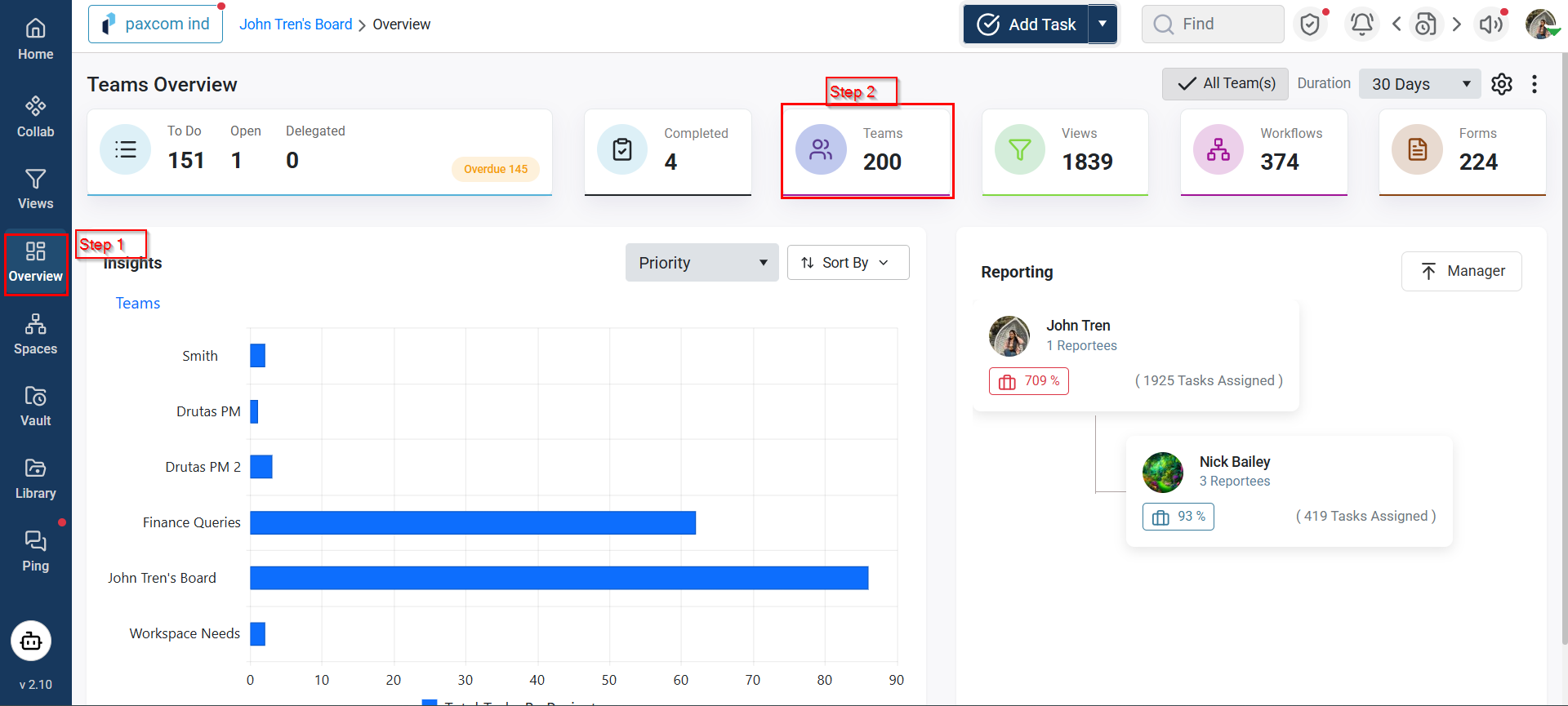
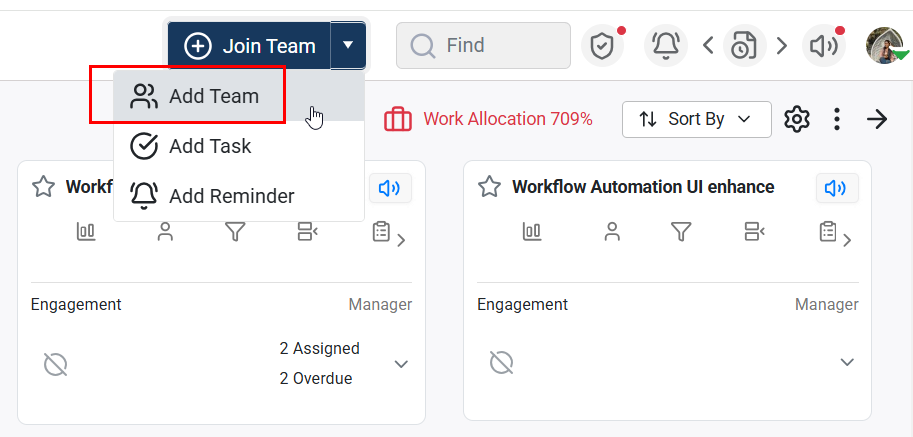

Using the Team Settings icon, you can:
- Name or rename the team
- Set the team code
- Add or rename default stages (To Do, In Progress, Completed) – these stages are pre-configured but fully editable.

- By default there will be three stages that will be configured automatically i.e. (To Do, In Progress and Completed). Additional stages can be added or deleted as per the team/project requirement, as shown below in the image:

In addition to configuring a Team/Project, the team settings page provides detailed explanations to help you optimise your team’s setup efficiently and effectively.
To add a Team from the Space Common page:
- Click the space icon in the left sidebar menu.
- Locate the space under which you want to create a new Team, you must be a member of this space
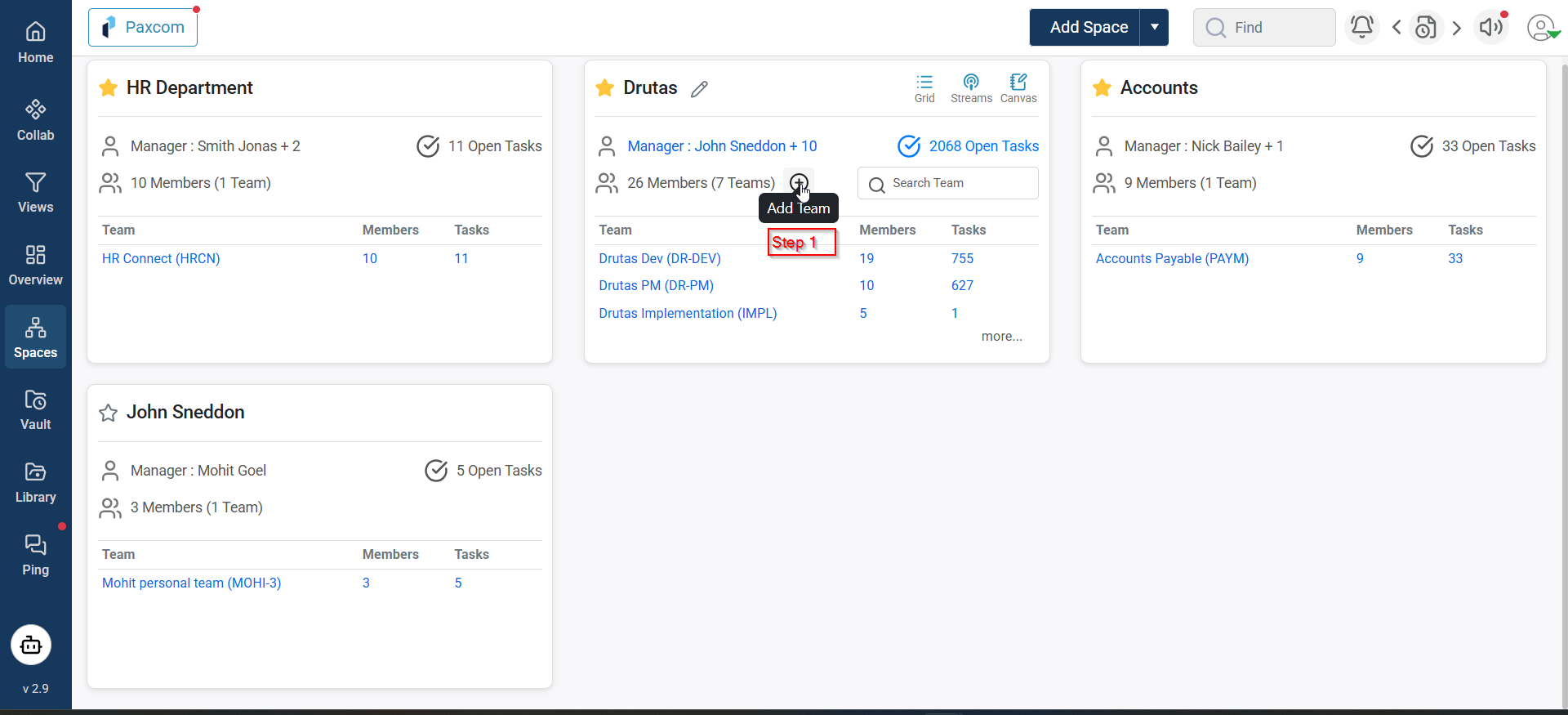
- Click the Add Team icon — a pop-up will appear.
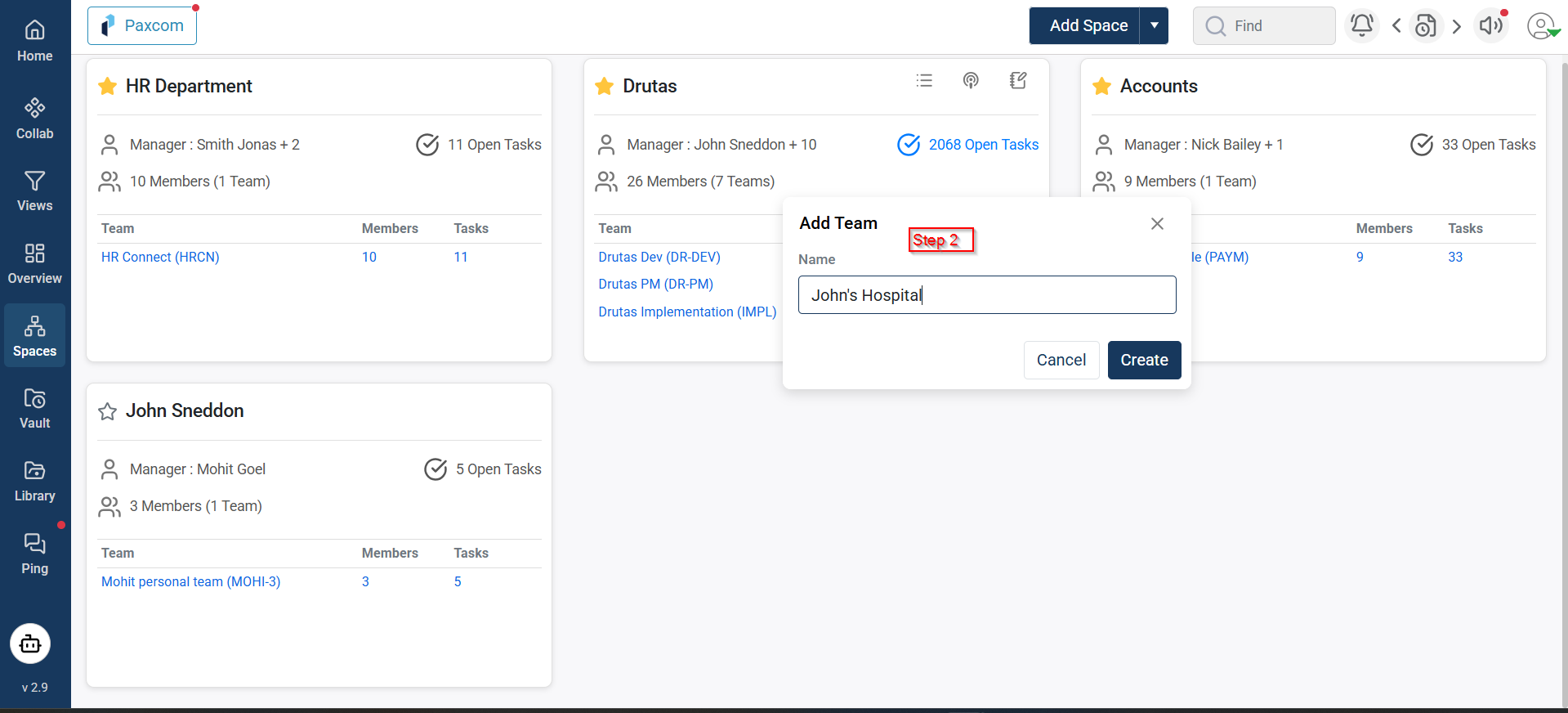
- Enter a name for your Team and click Create.
- The newly created Team will appear under the same space card.