How to Access the Team Settings Page:
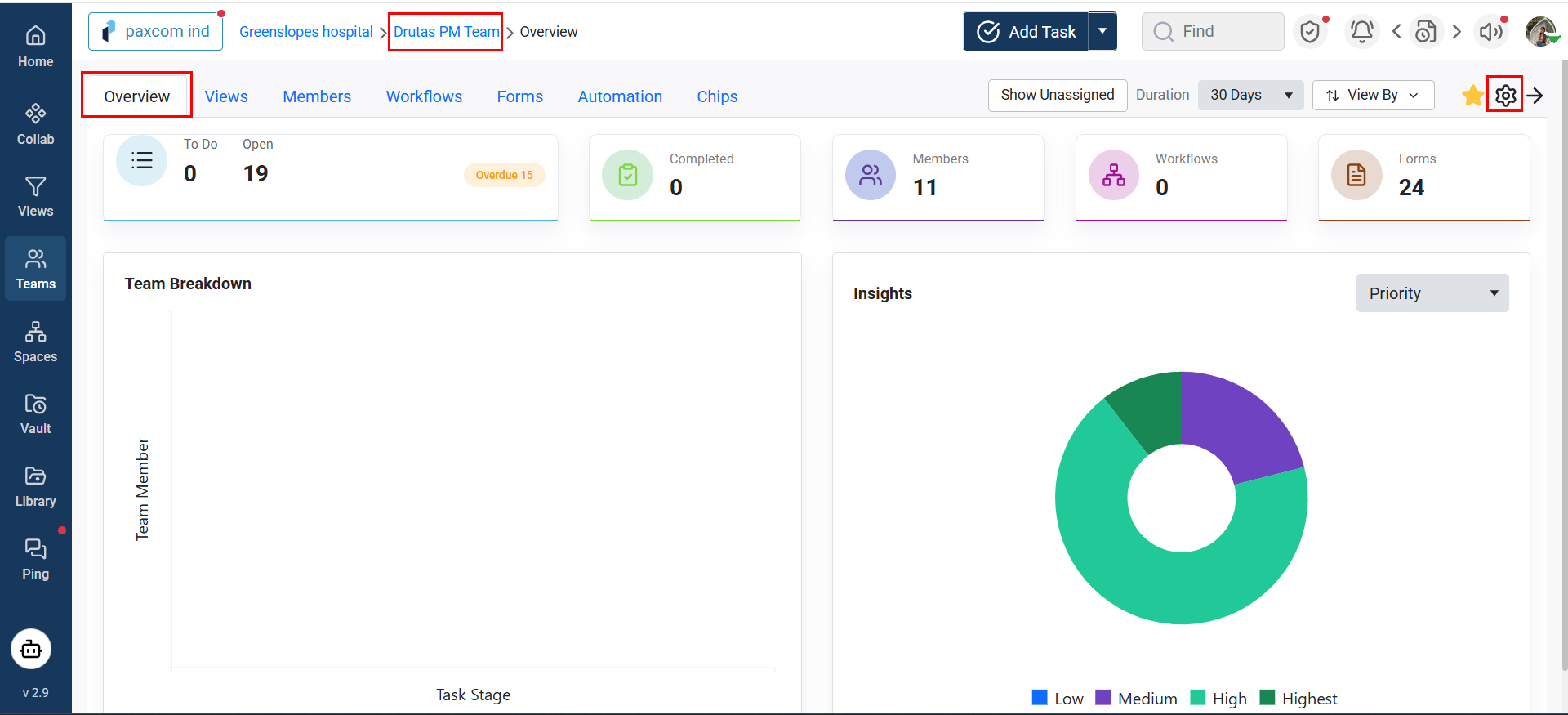
A Team member or a collaborator can access the team settings pop-up during the team creation process or by clicking the team’s settings gear icon. Changes can be made to the team name, team code, team stage and the Project Configuration panel.
![]()
To access the Team Settings gear icon:
- Navigate to the Teams page or open a team from Favorites.
- This will take you to the team’s Overview page.
- Click the Settings gear icon located in the top-right corner of the page.
Bookmark your team:
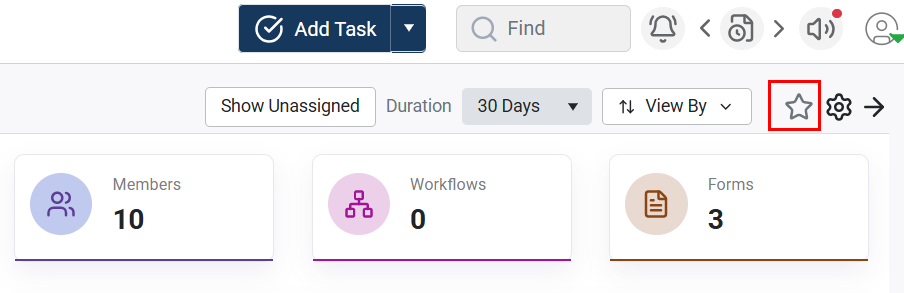
Mark your team as a Favorite for quick and easy access. Simply click the Star icon in the top-right corner of the Team Overview page, as shown below.
![]()
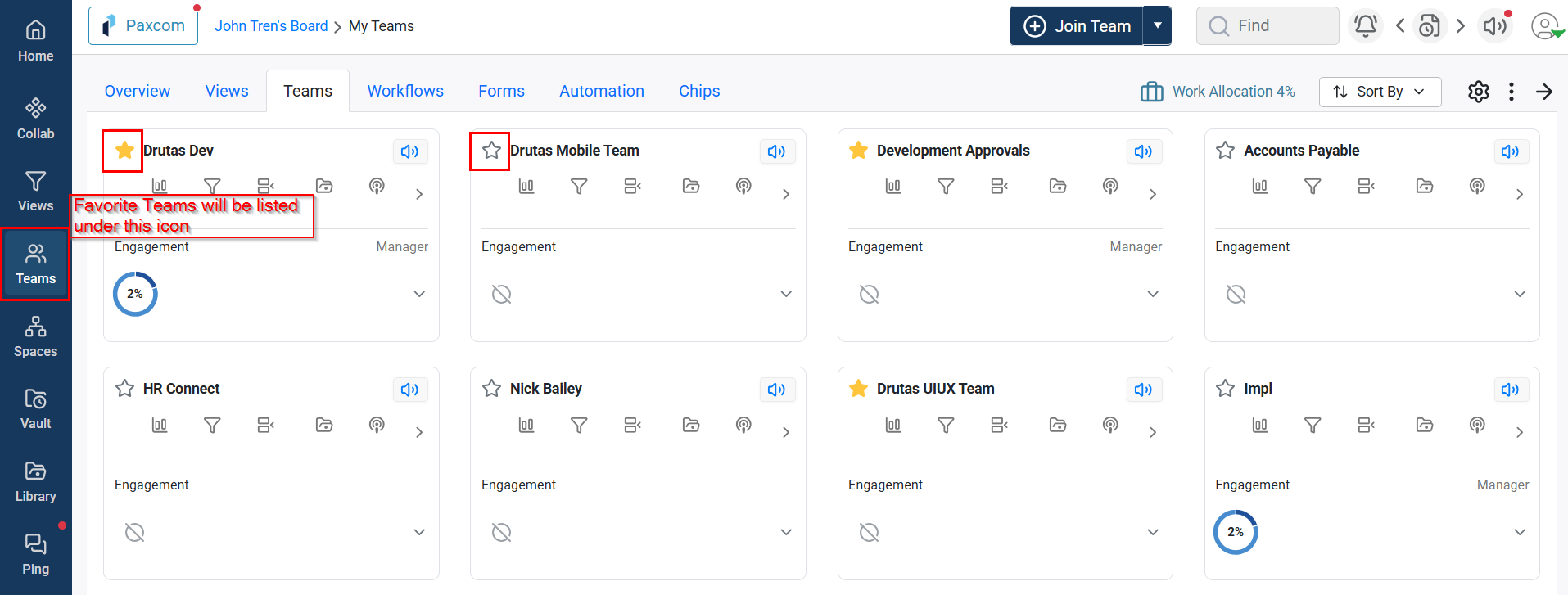
You can also mark a team as a Favorite directly from the Teams page using the team cards.
![]()
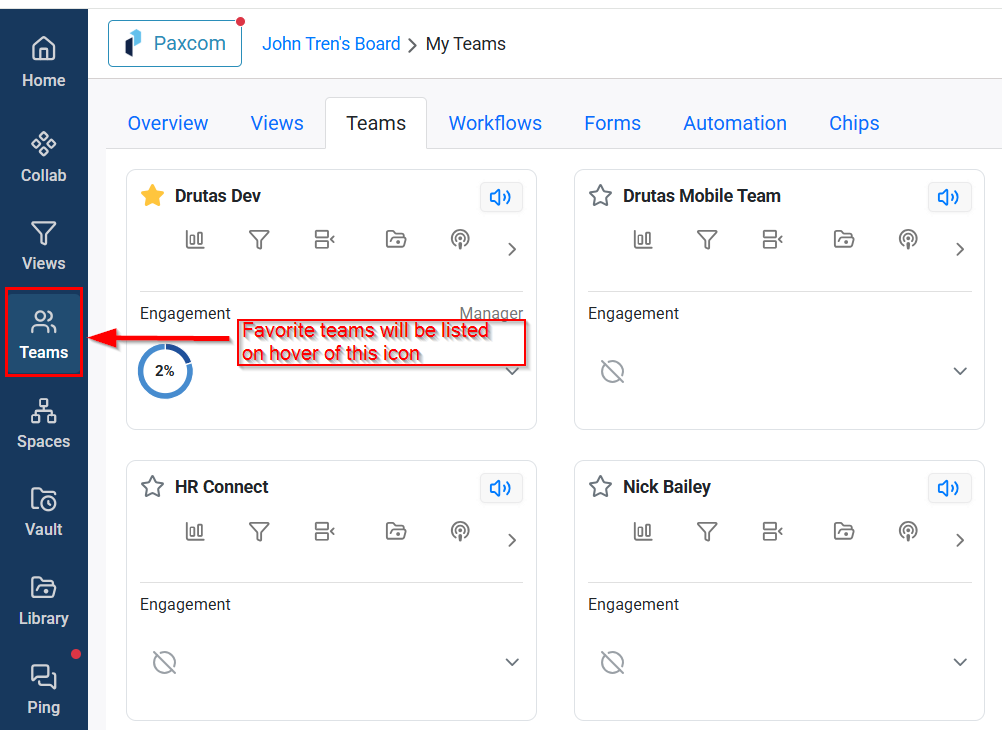
Once marked as a Favorite, the team will appear under the Teams icon in the left sidebar, allowing you to access it quickly from anywhere in the application.
![]()
Customize your team codes to fit your team’s task code:
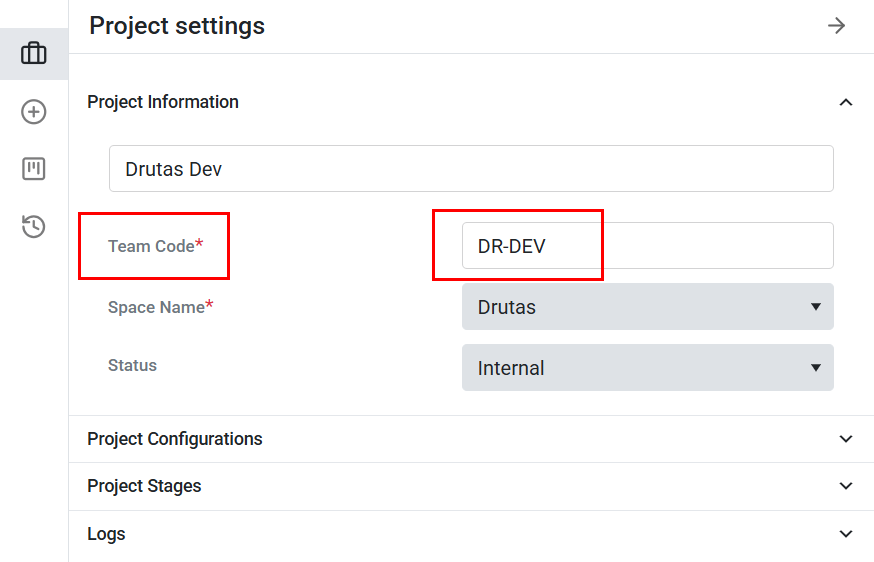
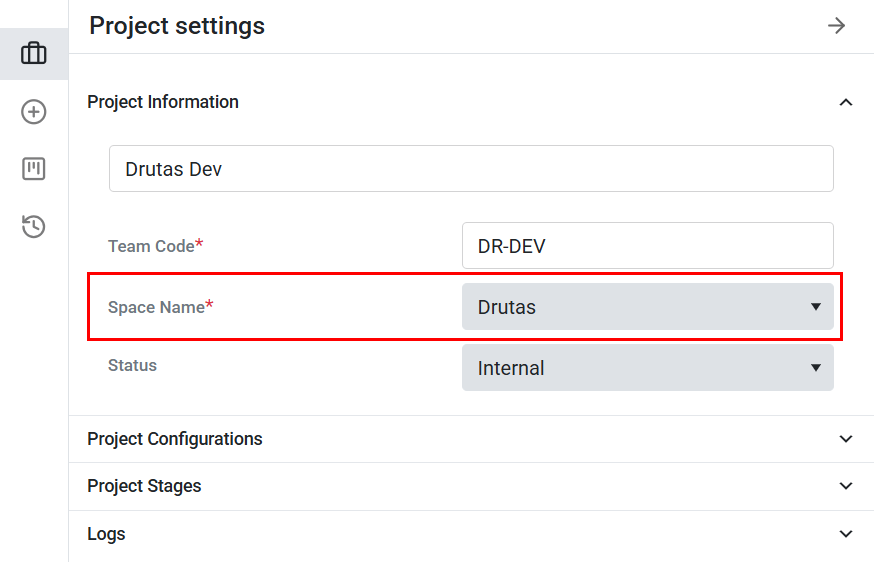
A team code is seen when a task is created using the project/team, a default code is created during the team creation. However this can be changed if you want to change it, as shown below:

A team’s assigned Space can be updated from the same settings pop-up. Under the Team Code field, use the Space dropdown to select a different Space. Once saved, the team will be moved and displayed under the newly selected Space.
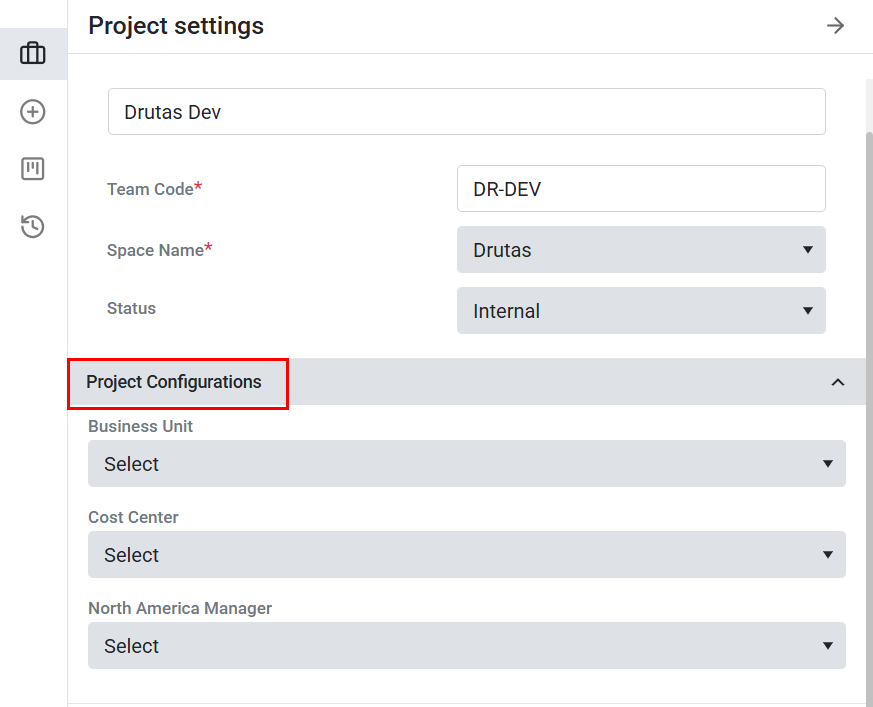
Project Configuration:
The variables displayed in the Project Configuration panel represent the key project properties used to define and manage project information. These fields are configured by administrators in the Admin Console through the Project Profile Layout feature and are automatically made available within each project’s settings.

Team/Project stages:
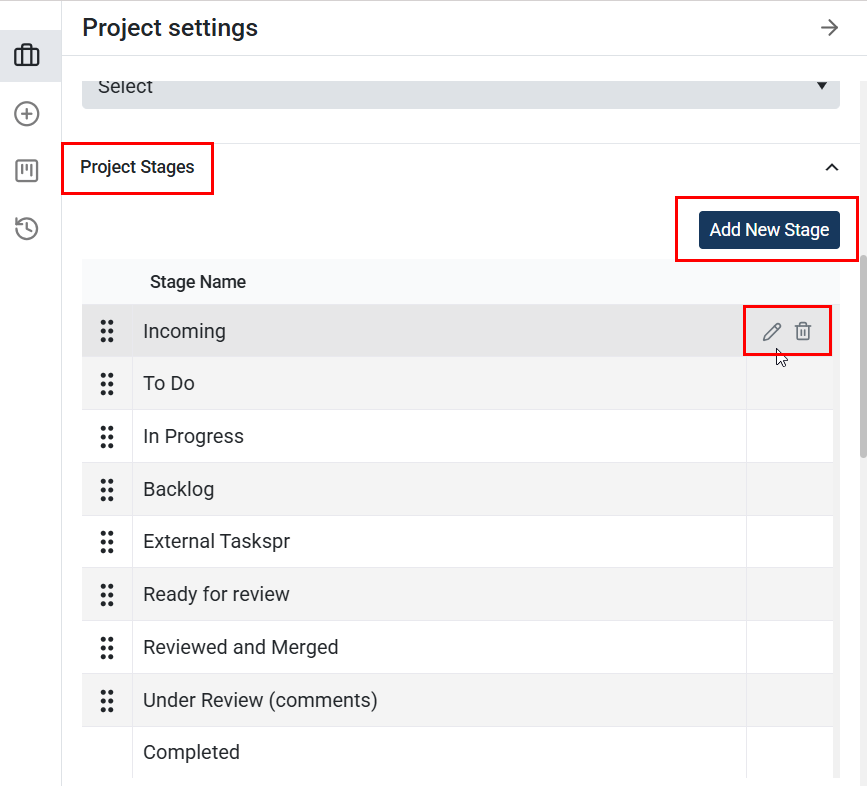
By default, Team/Project Settings include three stages: To Do, In Progress, and Completed. Additional stages can be added as needed, and they will be available for selection when creating tasks within that team or project.

Project Logs:
The Project Logs panel, located at the bottom of the Project Settings sidebar, provides a complete activity history for the project. Any actions performed by team members within the project are automatically recorded and displayed here, making it easy to track project updates and changes.