1. Home
  2. Help
  3. Tasks
  4. Task Settings

Task Settings

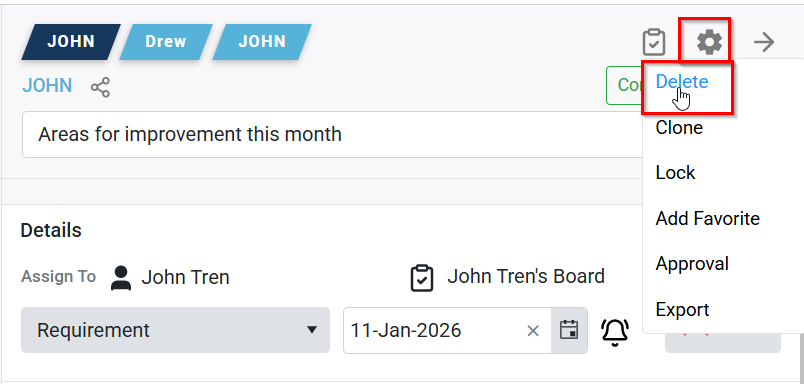
To manage a task, including options to delete, clone, lock, bookmark, or request approval, use the settings gear icon. This icon is located on the right side of the task. Click it to access these settings, as shown below.
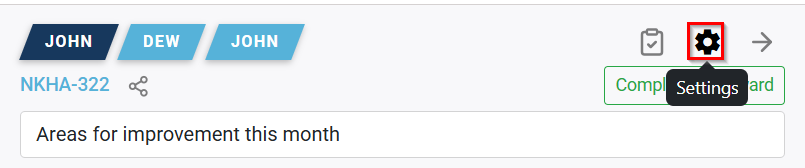
  • Deleting a Task:

A task can be deleted only by its creator and only while it is currently assigned to them. If the task has moved to the next team—where you are not a member—or to another user’s board, it cannot be deleted.

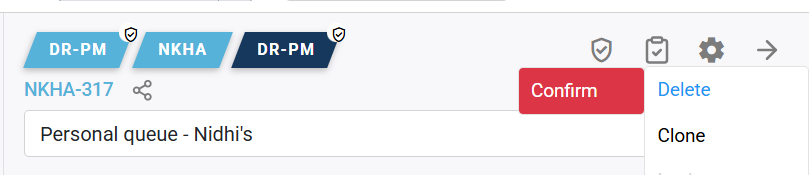
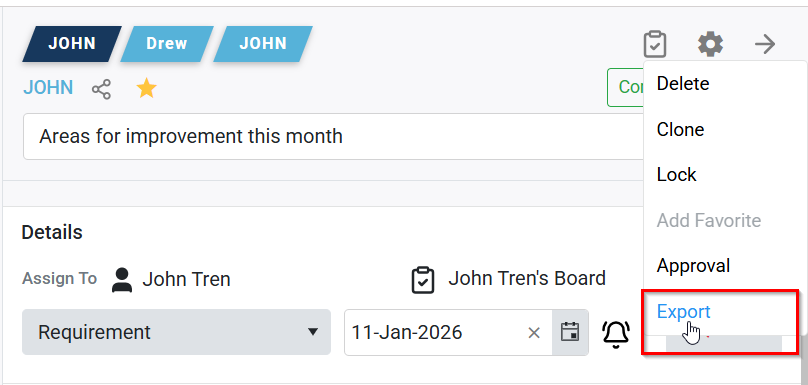
To delete a task, click the settings icon on the left side of the task sidebar and select the Delete option.

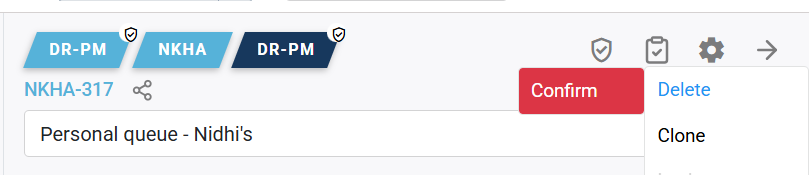
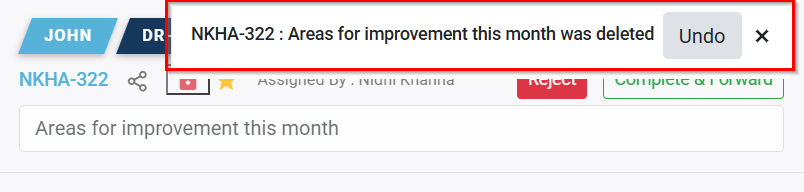
When you delete a task, a confirmation prompt appears. After confirming, a message is shown stating that the task has been deleted.
  • Clone:

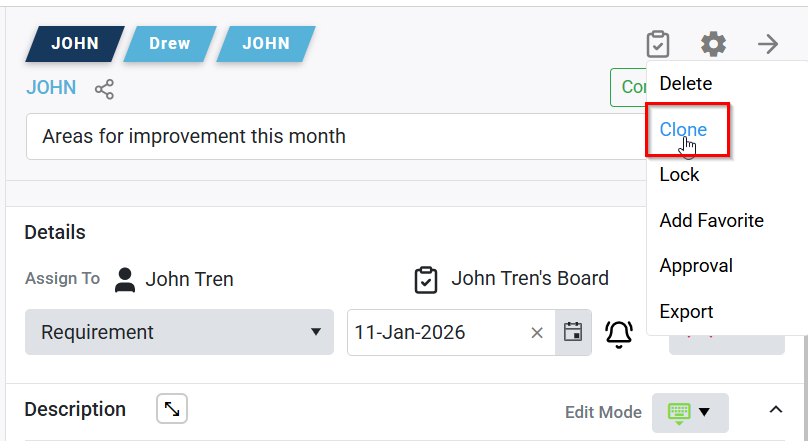
To clone an existing task, open the task, click the settings icon, and choose “Clone.” The cloned task will be assigned to the same team, with you as the assignee, Clone option shown below:

  • Lock a Task 

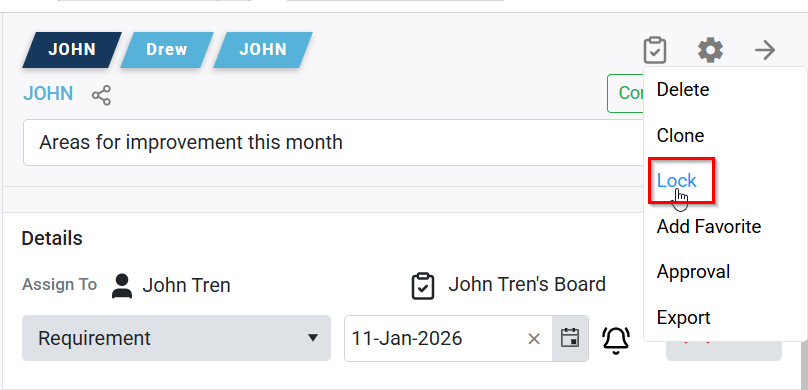
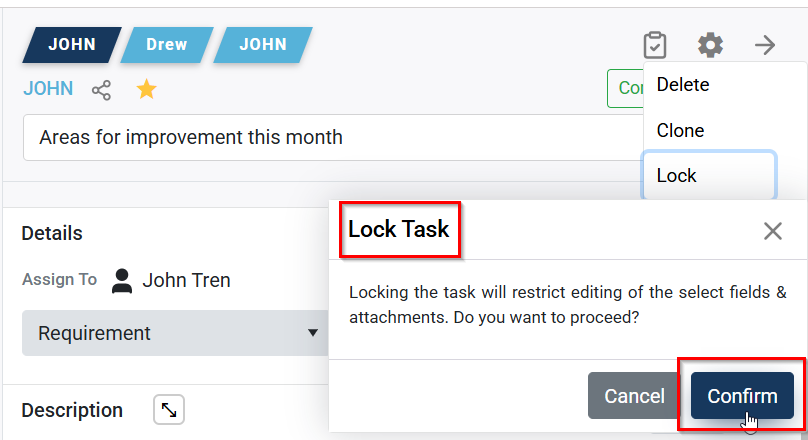
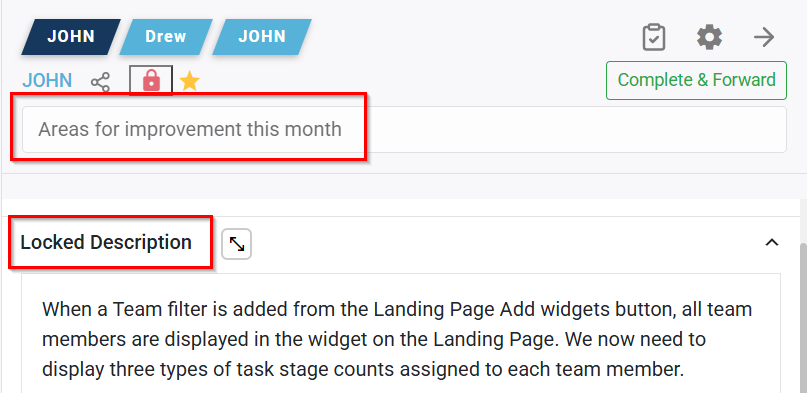
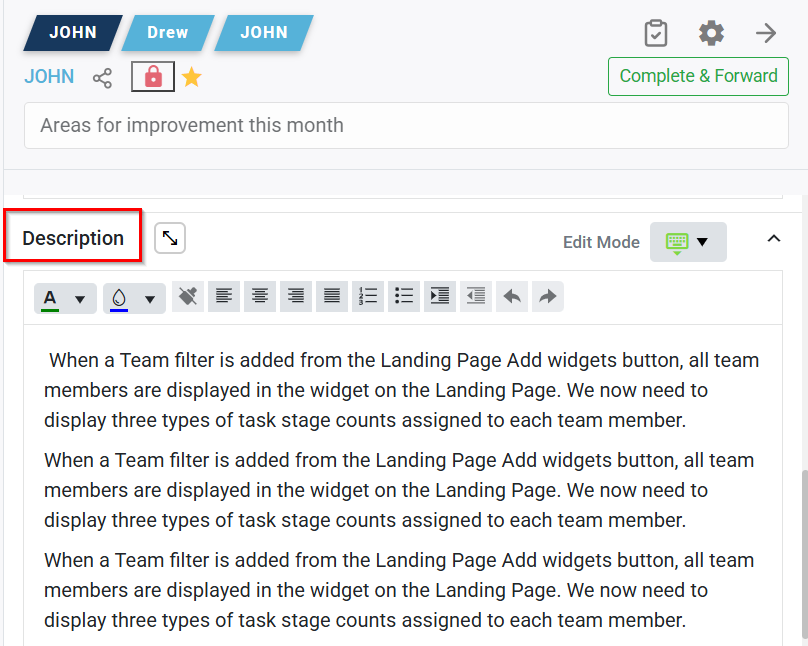
To lock a task, use the lock option from the task sidebar settings. This action locks the task name, description, and opens a new description. A red lock icon will indicate that the task is locked, shown below:

  • Bookmark:

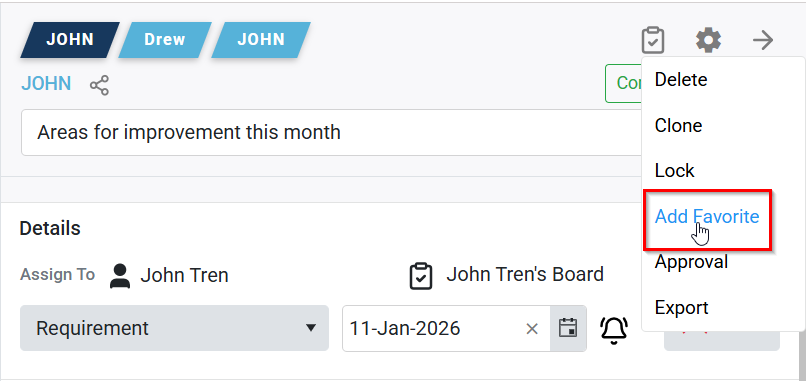
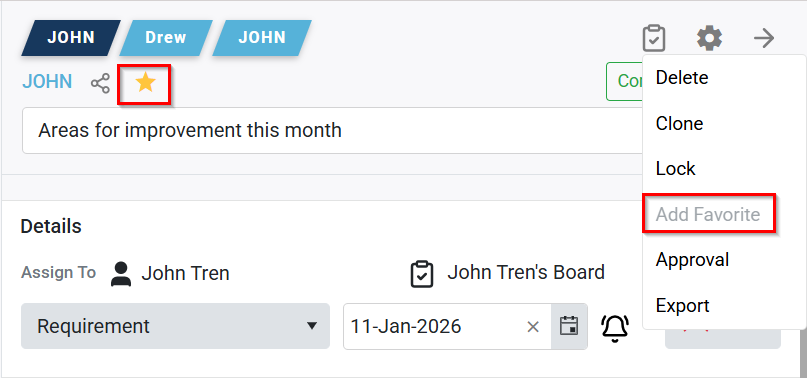
To bookmark a task, click the task settings icon and select “Bookmark.”

The bookmarked task will display a filled star icon on the top of the task sidebar, shown below:

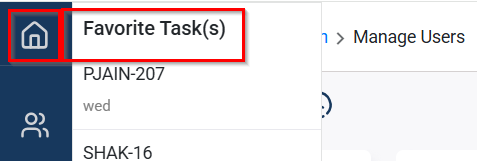
The task will also appear on the left under the My Board section, shown below:

  • Approval

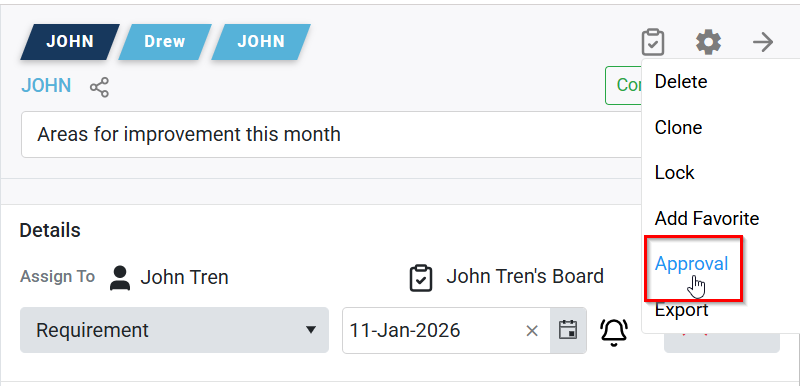
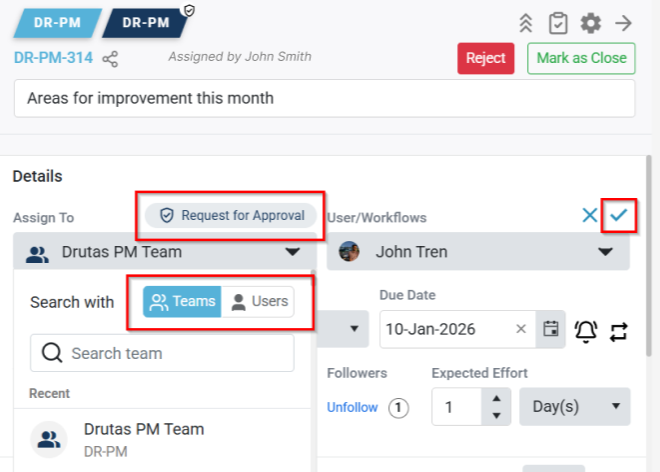
To create or send a task for approval, select “Approval” in the task settings

The approval icon will highlight, allowing you to choose the approval assignee, and indicating the process is in progress. shown below:

Was this article helpful to you? Yes No

Your Feedback