
Some important information on Reminders:
- Anyone with access to the task, including followers, can set reminders.
- Two types of reminders are available using the task sidebar: dynamic and fixed.
- If a follower is removed from a task, the reminder remains, but the removed user loses access to the task and the reminder.
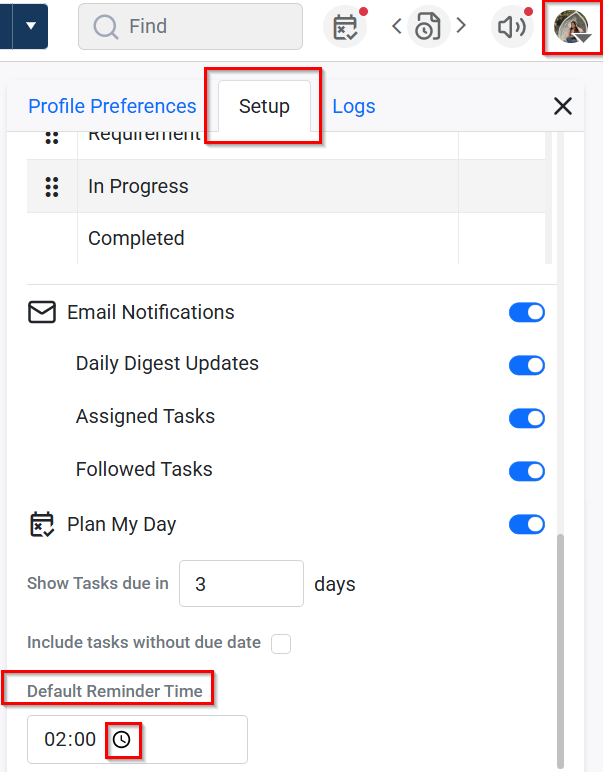
- When a new account is created, the default reminder time is automatically set to 9 am.
- If you want to change this default reminder time, you can do so by visiting the user profile pop-up and then the setup page, as shown below:
- If the due date of a task with attached reminders is changed to “no due date,” this action removes the dynamic reminders, but keeps the custom ones.
What is a dynamic reminder?
- A dynamic reminder can be set for tasks that have not yet passed their due date.
- You can set the reminder for the task’s due date or a selected number of days before, but not past the current due date. These options have been shown below:
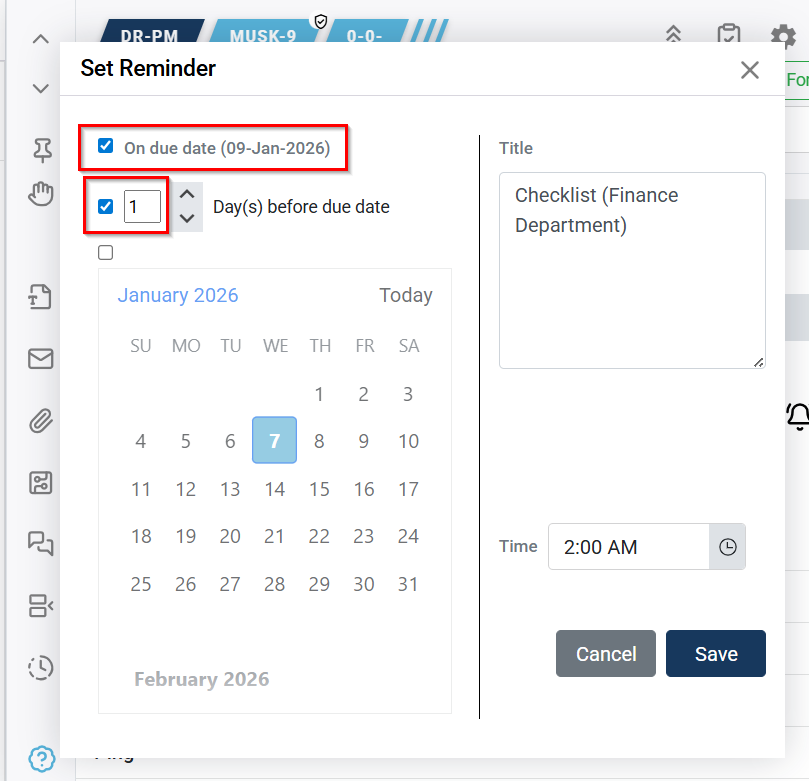
- Upon saving a future reminder, an in-app notification will appear on the reminder date at 9 am, or at your preferred time specified in your user profile settings.
- The reminder notification will appear as a blue icon. To view it, click on the notification icon on the top right corner of the application and then on the blue-highlighted reminder icon, as shown below:

- Clicking the blue-highlighted Reminder notification icon opens the Reminder’s common page, where you can view past reminders, open the task sidebar, and delete reminders as shown below:
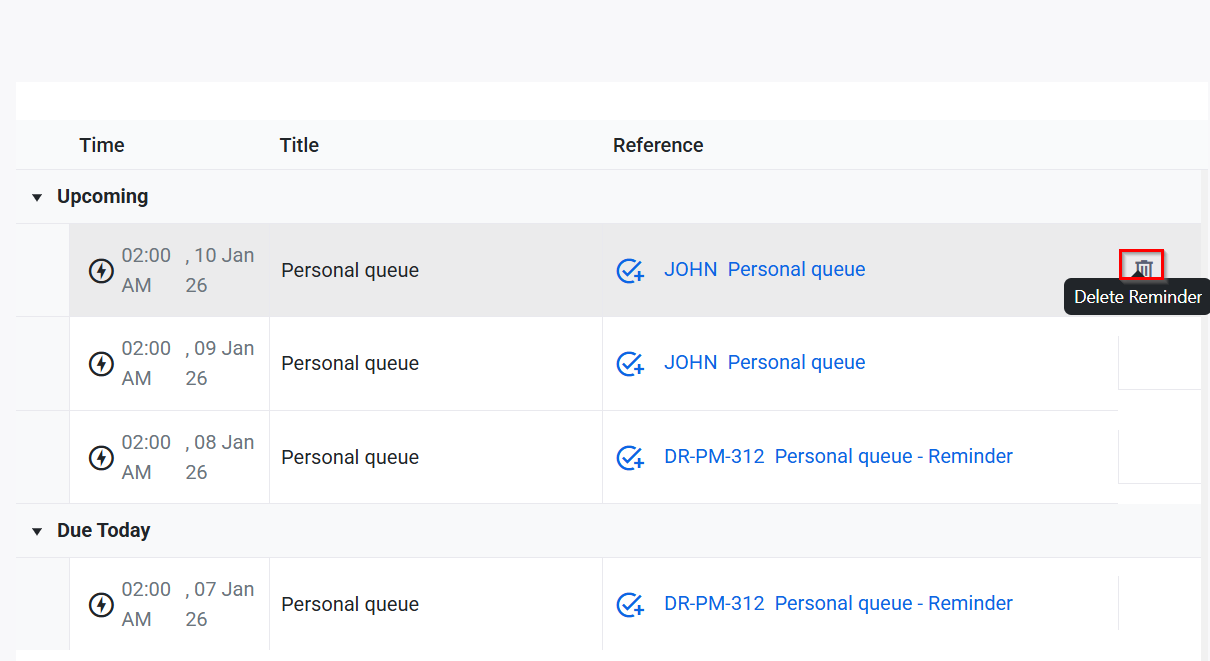
- A dynamic reminder, indicated by an electric symbol, will be shown in the Reminders common page pop-up, shown below:
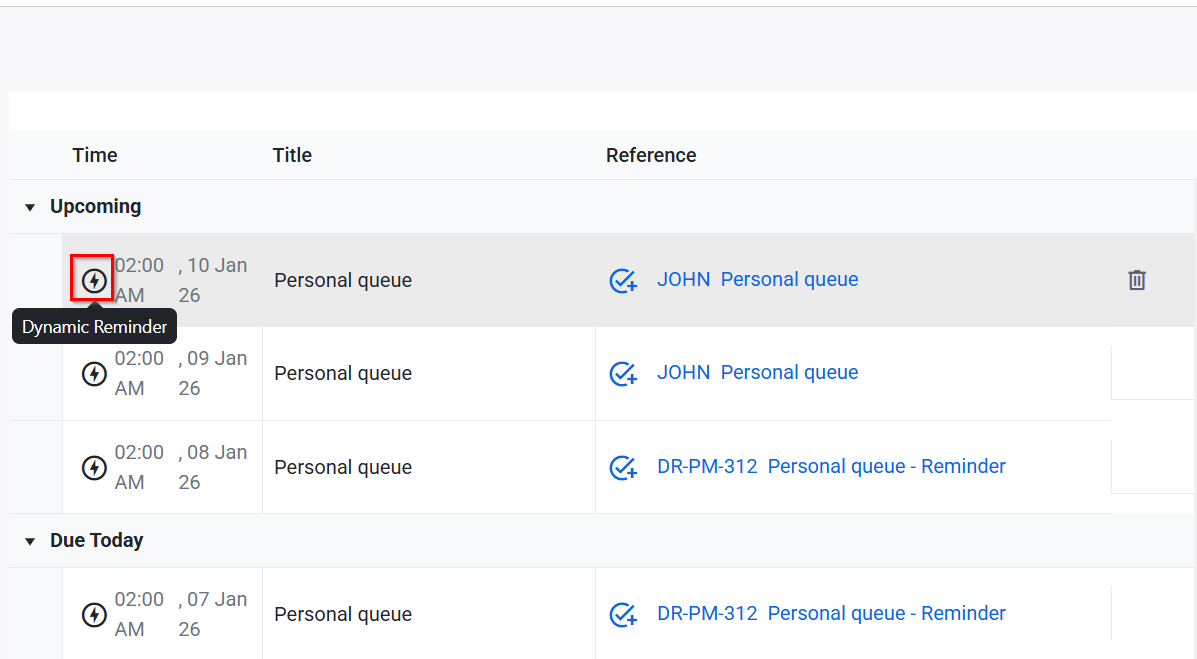
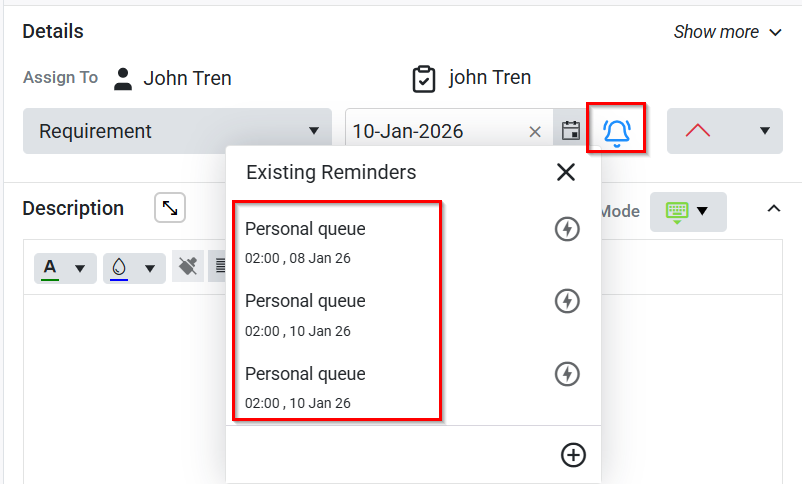
- The same dynamic reminder will also appear in the task sidebar when the blue-highlighted reminder icon is clicked, as shown below.
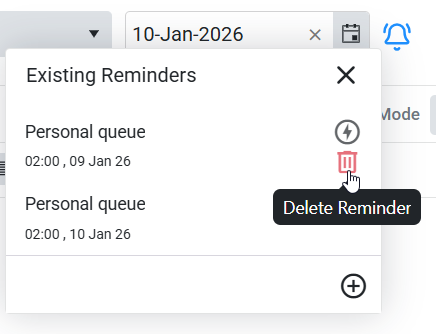
- Once the task due date has passed, these reminders will no longer be visible on the Reminders page. However, all upcoming reminders will still appear on the common page.
How to add or edit a reminder:
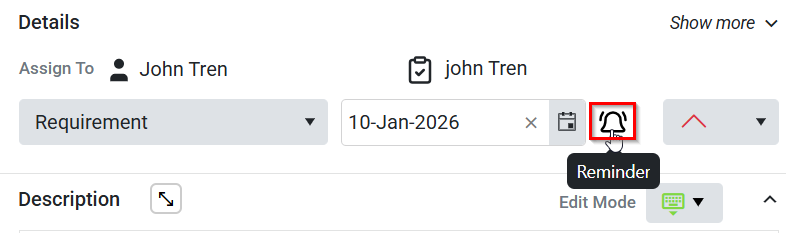
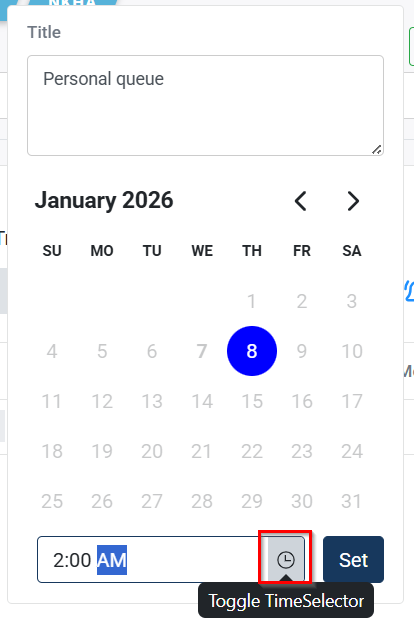
- To edit an existing dynamic reminder, you can only adjust the time; the date tab will be disabled. However, the date can be automatically adjusted based on changes made to the task’s future due date.
- A dynamic reminder will also be removed if the task’s due date is changed to an earlier date.
- You can set up unlimited reminders, but only the top four will be displayed in the reminder pop-up.
- A scroll option will be available to view the remaining reminders.
Custom Reminders:
A custom reminder can be created by selecting the Custom option from the Add Reminder icon in the task sidebar, as shown below.
These reminders will be visible for up to the past seven days on the common reminders page, after which they will be automatically removed.
- To set a reminder, click the Reminder icon and select the Custom option at the bottom-left of the reminder pop-up.
- This opens a calendar, allowing you to schedule the reminder for future dates, as shown below:
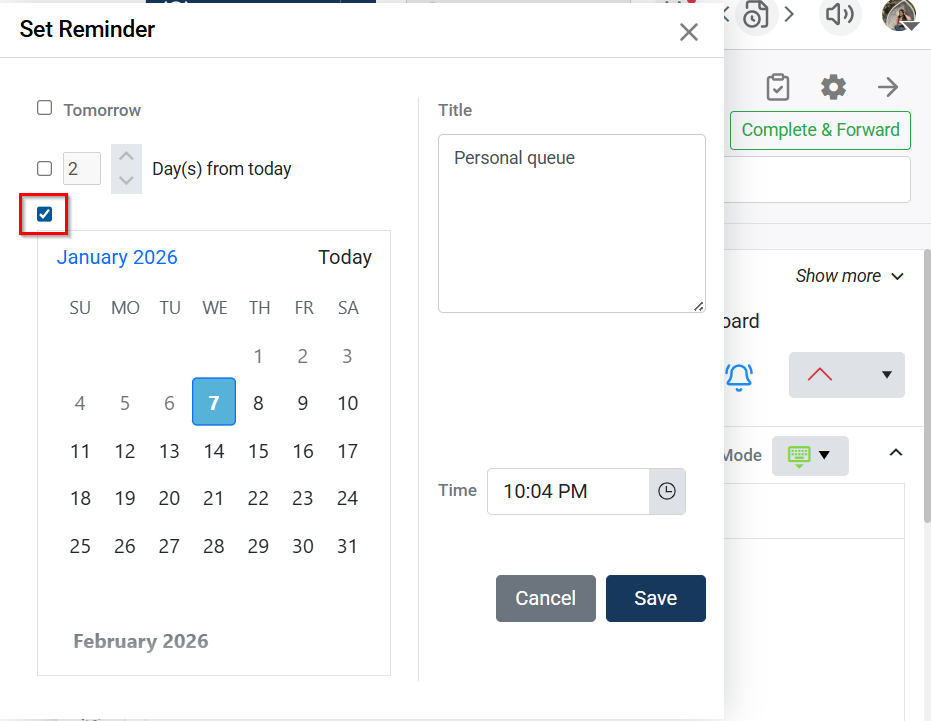
- Once you’ve chosen a date, you’ll be prompted to select a time on the same date.
To add additional reminders, you can follow these steps:
- Click on the blue highlighted reminder icon located in the task sidebar
- Scroll to the bottom of the reminder pop-up window and click on the “add reminder” icon as shown below in the image:

- Newly added reminder will appear in the reminder pop-up window, as shown below in the image:
